
Thikra Blog shares smart living tips, home gadget updates, and lifestyle technology insights tailored for UAE readers.
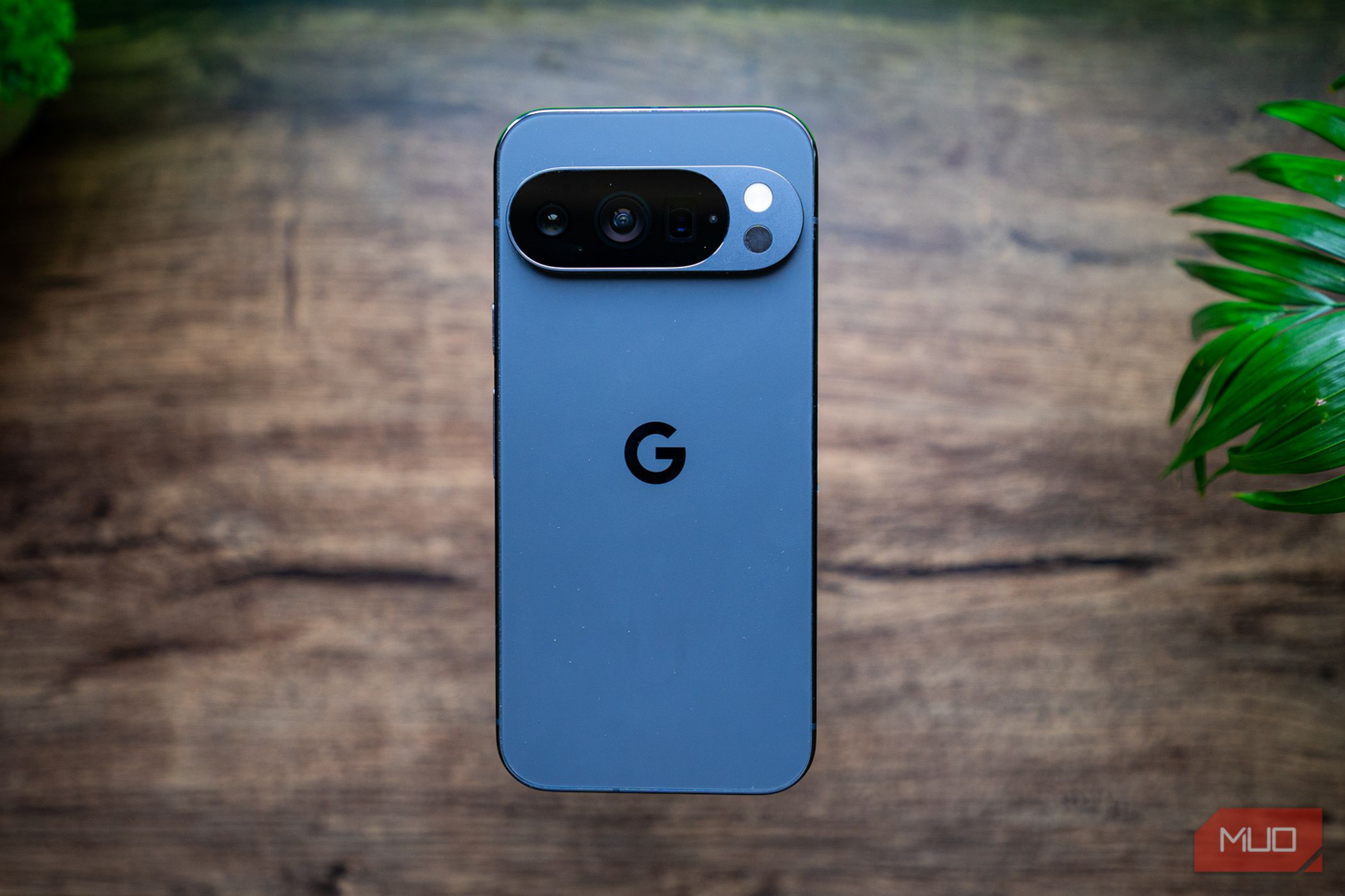
Pixels are already known for their excellent camera capabilities. And while the photos it clicks are pretty natural and true-to-life, I went all in on the settings of my Google Pixel 10 Pro and found these five camera features that completely changed how I click photos.
With Christmas and New Year’s Eve just around the corner, your holiday memories are about to look and feel a lot better.
Focus the way pros do
Your shortcut to making the Pixel focus precisely where you want

Who knew that one day DSLR features could actually come to a smartphone? The Pixel camera lets you manually focus on exactly what you want. It will show pink lines along the edges of the object you’re capturing, as a DSLR does.
This works well in a chaotic setup. Say, for instance, you’re capturing a table full of jewelry kept here and there, or maybe too many decorative items on a Christmas tree. Out of the lot, it lets you focus on the one object you want to capture.


To find this icon, tap the Viewfinder icon at the bottom-right of the camera app. Now, scroll toward the end to locate it. If you’re someone who likes to micro-manage things even more, you can manually adjust the shutter speed and ISO controls, too. These icons are available directly beside the Focus icon in the Viewfinder.
Make dull pictures vibrant
The color upgrade hiding in plain sight

I am sure you want to look back on your holiday memories, but not if they’re dull and without rich colors. This one small setting could completely change how your picture looks, and it’s actually hiding in plain sight.
The Display P3 color format on your Pixel will add a theatrical effect to your photos. It will capture vibrant colors, especially the reds, yellows, and oranges. It’s also important to know that the color effect might look different on different devices.
To toggle on this setting:
- Open the camera app on your device
- Tap the Settings icon at the bottom left of the screen
- Then tap the three-dot icon on the right side. Doing this will open the camera settings.
- Scroll down until you see the Photo tab, then toggle on Rich color in photos.
The Display P3 color format is available only on Google Pixel 8 and later phones. So, if you’re using a slightly older Pixel, you may not find it.
A mentor you can rely on
The nudge that moves you closer to your best
If you want to take better photos with your Pixel but don’t know where to get started, the Camera Coach tool is all you need. To find this tool, open the Camera app on your device and look for a camera icon with a star on the upper right side of the screen. Point the camera at the spot you want to capture, then tap the icon.
It will scan the object or subject you’re capturing. With the help of Gemini AI, it will offer a step-by-step guide to click the right picture. This is an excellent tool for someone who needs that extra help to bring out their best versions. To be honest, AI actually lends a hand in making things better. It’s making our lives easier in more ways than we think, and here’s why.

Android phones would be better if they copied these Pixel features
Some of Pixel’s smallest features leave the biggest impression.
To get a fair idea, I went to a café to have some hot chocolate in these chilly winters. When I pointed the camera toward it, the coach gave me three themes: the patterned cup close-up, the cup with hot chocolate, and the cup on the table.
I chose the cup on the table theme, and it started guiding me to rotate my phone to portrait orientation, to remove the clutter behind me, and reframe my picture. I love a camera assistant who tells me what to do and brings out excellent images. And with the holiday season coming up, these creative ideas will easily convince you for an at-home photoshoot.
Fast access to lighting controls
When you take the driver’s seat
Sometimes the light isn’t captured as well as it could be when taking pictures. Having faster access to adjust the white balance, brightness, and shadows by tapping the Viewfinder is all you need to click a photo at the right time. You have to tap the camera screen while taking a picture, and the quick controls will pop up so you can manually adjust them.
To have these quick controls exactly when you need them, open the Settings icon in the camera app at the bottom left of the screen and tap the three-dot icon. It will take you to the Camera Settings. Slightly scroll down to fast access and toggle on the quick access controls.
Lens control by you
Steer the camera the way you want

When I was out and about in my neighborhood, clicking pictures of a bunch of leaves, flowers, or even objects on the table, the Pixel camera automatically switched to the telephoto lens. And when I clicked pictures with that lens, the leaves and flowers around the edges became unclear. And the overall picture lost clarity.
So having the ability to set it to manual is such a good feature to have. To modify it, go to the Settings icon at the bottom left of the camera app, select the Pro tab, and change Lens selection to Manual. Now, you’ll get three options: ultrawide, wide, and telephoto. To zoom in or out, long-press any option to adjust the zoom.
A gentle reminder: Curiosity makes the best photos
Just like you, I wanted to find the settings that could make my Pixel perform like an incredible camera phone. And the change in the settings definitely makes it even more promising. I’d be honest, the Google Pixel 10 Pro is not my primary phone. But whenever I want to click photos, this one makes the secondary use worth it.
Apart from the cameras, the Google Pixels have their own set of cons, especially in countries like India, where after-sales service is not the best, and there are occasional software glitches. But I’d keep my curiosity high to find these little tips and tricks that will deliver high-quality images for all of us. And that’s not all. I used Google Photos to edit the pictures I clicked, and if you thought it only existed to back up your media, these eight editing features might surprise you.
source
Note: All product names, brands, and references in this post belong to their respective owners.
For more smart home guides, lifestyle tech updates, and UAE-focused recommendations, visit blog.thikra.co.
To shop smart gadgets, accessories, and lifestyle electronics, explore Thikra Store at thikra.co.





Leave a Comment