
Thikra Blog shares smart living tips, home gadget updates, and lifestyle technology insights tailored for UAE readers.
I used to play formula roulette every time I dragged the fill handle, hoping Excel wouldn’t misinterpret my intentions. Was I supposed to lock the column, the row, or both? Then, the dollar signs scattered through my formulas felt like landmines waiting to blow up my logic. I lost more hours than I want to admit trying to understand why a perfectly innocent-looking reference like Sheet3!$AB$142 insisted on pointing to the wrong thing.
What finally helped me break that cycle was learning to use named ranges in Excel not only as stable anchors but also as flexible, relative references that behaved exactly the way I intended. Once I started relying on them, I stopped forcing Excel to recalculate the same things thousands of times, and I no longer had to decode cryptic cell or sheet addresses just to keep a formula from collapsing.
Using named ranges as static and relative references
They’re not only about readability
Most people first learn about named ranges as a readability tool, and so did I. I initially assumed they were just a way to replace cryptic Excel cell references like A1:A100 with something clearer, like UnitsSold. Over time, though, I realized named ranges do far more than make formulas look cleaner or easier to read.
If you have ever used $A$1 to lock a reference in place, you already know how tedious it is to maintain those dollar signs across dozens of formulas. One row slipping out of alignment can throw off totals, cause lookups to return the wrong values, and make error-checking feel impossible. Using a named range eliminates these problems.
When you have a cell that should always stay fixed, such as today’s date, a discount rate, an exchange rate, or any other constant input, you can assign it a name like TodayDate or DiscountRate. Once that name exists, you can drop it into any formula, and Excel will always pull it from the correct cell regardless of where the formula lives or how far it’s copied:
=B5*(1-(DiscountRate))
Named ranges also offer more flexibility than many people realize. They are not limited to absolute references; they can mimic relative referencing through carefully constructed definitions. For example, if you use something like =!A$1 in a named range’s Refers to field, Excel will always return the A1 cell of whichever sheet the formula is on. Typically, a named range includes an absolute sheet reference such as =’Sheet1′!$A$1, which forces it to point to that sheet forever. However, if you define a named range without a sheet name, or you use relative cell references inside the definition, you can create a relative named range. This turns the name into a reusable formula component that adjusts based on the sheet in which it appears.

This Excel Trick Lets Me Write Formulas Like a Human
Smarter Excel formulas with the simplicity of everyday language.
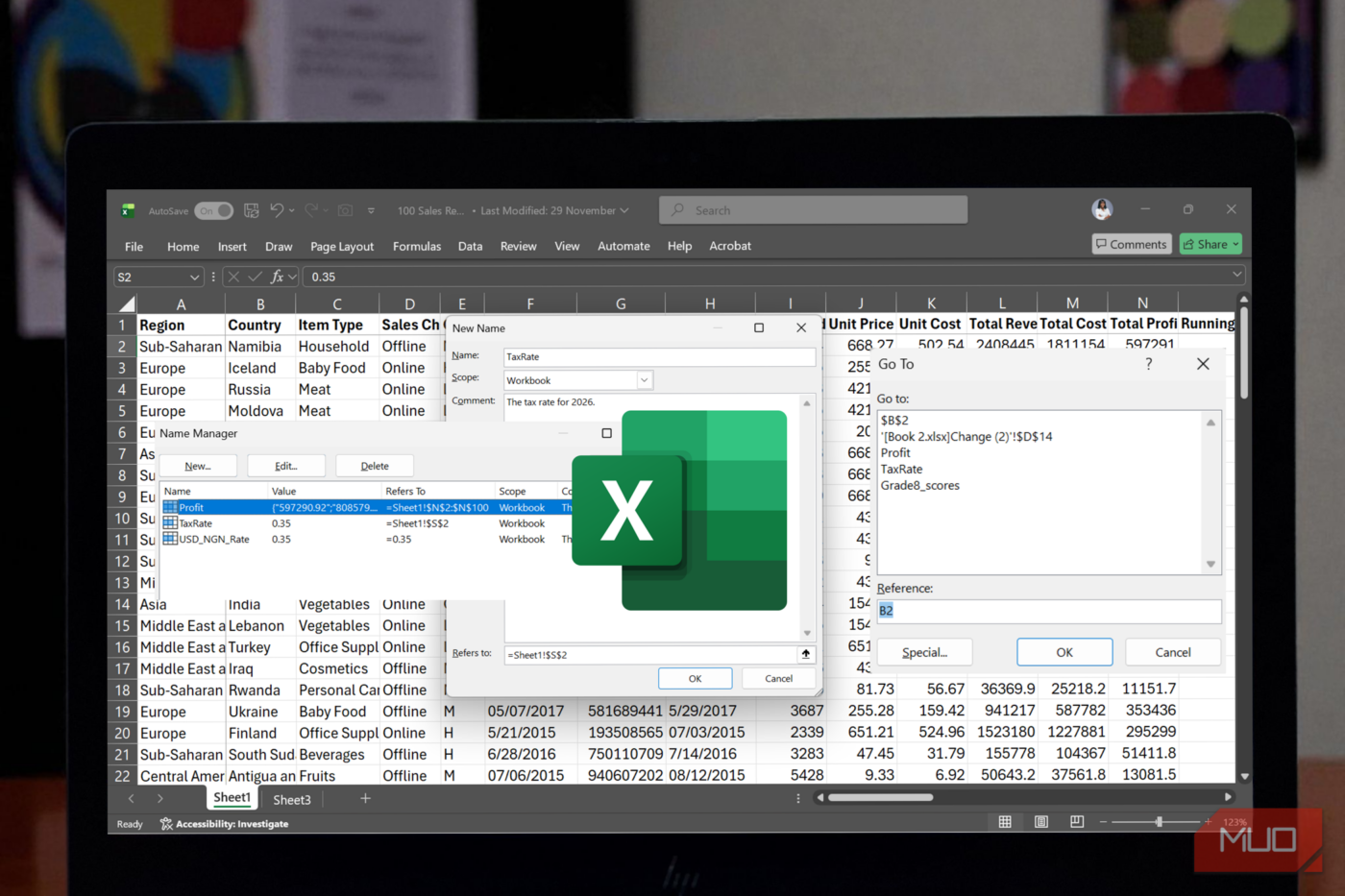
As an example, imagine you have a budget workbook with a separate sheet for each month, where cell B7 always contains that month’s net income. You might want a simple, consistent way to reference that value on each sheet. Press Ctrl + F3 or go to Formulas –> Name Manager -> New. Name the cell NetIncome and enter the following in the Refers to field:
=!$B$7
Then, click OK. The exclamation mark without a sheet name tells Excel to look at the current sheet, and because both the row and column are locked, the name always points to cell B7 on whatever sheet hosts the formula that uses NetIncome.
Once defined, you can use NetIncome on any sheet in the workbook. If you had used an absolute reference like “=SheetA!$B$7” and then typed “=NetIncome” on Sheet B, Excel would incorrectly return the net income from Sheet A. The relative named range avoids that problem entirely, ensuring the reference remains context-aware.
This trick is best for when you have to build reports or templates that repeat the same structure across multiple sheets. Whenever key data appears in the same relative location, whether it is a header in A1, a date in B1, or a total in Z10, a relative named range keeps your formulas clean, stable, and super easy to maintain.
For handling volatile functions effectively
One name that replaces thousands of recalculations

Functions like TODAY, NOW, OFFSET, and INDIRECT recalculate whenever your workbook updates, even if nothing about their arguments has changed. If your spreadsheet contains only a few instances of them, everything will run smoothly. However, if these functions appear across thousands of rows, your workbook will begin to feel too complicated.
Instead of embedding “=TODAY()” in every formula that needs the current date, calculate it once, either in a helper cell or as a named range created through the Name Manager. After that, you can use the name you defined (like “TodayDate”) wherever you need it. A single calculation then replaces hundreds or thousands of redundant ones, which is essentially the spreadsheet version of browser caching. And you can do the same with all the other volatile functions.
However, named ranges can increase the volatility of these functions if you use them incorrectly. When you define a named range using a volatile function like OFFSET, every formula that relies on that name will become volatile as well, which can sometimes be disastrous.
For instance, imagine you create a named range called WholeSales to automatically cover all data in column A as the number of rows expands or contracts using OFFSET:
=OFFSET($A$2,0,0,COUNTA($A:$A)-1,1)
Any formula that contains WholeSales will recalculate every time there’s a change to your workbook, just because it contains OFFSET. If ten formulas refer to WholeSales, all ten recalculate on every change. If a complex dashboard contains a thousand formulas tied to that range, all thousand recalculate continuously, even when their input data has not changed. The result is constant, unnecessary recalculation that can slow down large or sophisticated models and cause lag or crashes.
The best approach is to avoid volatile functions such as OFFSET in your named ranges and rely on non-volatile alternatives like INDEX:
=$A$2:INDEX($A:$A,COUNTA($A:$A))
That said, you do not need to avoid volatile functions entirely. You can use them in named ranges when they serve a necessary purpose, as long as you understand the performance cost and apply them with care.

Excel’s new group of functions will break your brain in a good way
Once you grasp these, spreadsheets feel alive.
The dark side of named ranges
Powerful, yes, but easy to misuse

Named ranges are extremely helpful, but it is easy to understand why some people avoid them altogether. The biggest concern is that when a workbook accumulates hundreds of names, each pointing to a different cell or formula, tracing the underlying logic becomes difficult. I have heard people describe this chaos as Name Spaghetti, and the term fits. Several scenarios can cause trouble, but if you’re aware of them, you’re one step closer to avoiding them.
First, named ranges can exist at either the sheet level (local) or the workbook level (global). When you duplicate a sheet that contains local names, Excel automatically duplicates those names and updates their Refers to fields. For instance, Sheet1!$D$11 becomes Sheet1 (2)’!$D$11, and if you later rename the sheet, Excel adjusts the reference accordingly, such as Change!$D$11. This behavior works well until you begin merging workbooks or encounter a situation where a workbook-level name already exists. When you copy into a sheet containing a local name that matches a global one, Excel may prompt you to choose which name to keep. At that point, it can be difficult to pick the correct option, which is why it is better to maintain clear, unique names before combining files.
Excel also stores names internally, so you can easily accumulate hundreds of unused or orphaned names in your old or heavily edited workbooks. It’s a good idea to clean out your Name Manager regularly, because if you continue adding named ranges across many files, you can easily exceed 100,000 names. At that point, sluggish performance becomes a possibility, depending on your version of Excel.
This regular decluttering matters for another reason: when you delete cells that once belonged to a named range, the name does not repair itself. Instead, it becomes an invalid reference that spreads #REF! errors wherever the named range appears, and those are one of the most common Excel errors to deal with.

You’re not using Excel right until you master these error functions
These functions will make your Excel sheets resilient.
Fewer broken formulas, steadier sheets, and a simpler way to build
When you use named ranges thoughtfully, your formulas will become cleaner, sheets will become easier to manage, and key parameters will have a clear, centralized home. Instead of hunting through rows and columns trying to remember which cell holds the exchange rate or the threshold value, you can rely on meaningful names that follow your logic wherever it goes.
They are especially powerful in structured models where constants live on a dedicated sheet, which simplifies updates and reduces the chance of errors dramatically. When you need to audit a formula, selecting the name and pressing Ctrl + G takes you straight to its source, saving minutes that would otherwise stretch into hours.
source
Note: All product names, brands, and references in this post belong to their respective owners.
For more smart home guides, lifestyle tech updates, and UAE-focused recommendations, visit blog.thikra.co.
To shop smart gadgets, accessories, and lifestyle electronics, explore Thikra Store at thikra.co.









Leave a Comment