
Thikra Blog shares smart living tips, home gadget updates, and lifestyle technology insights tailored for UAE readers.
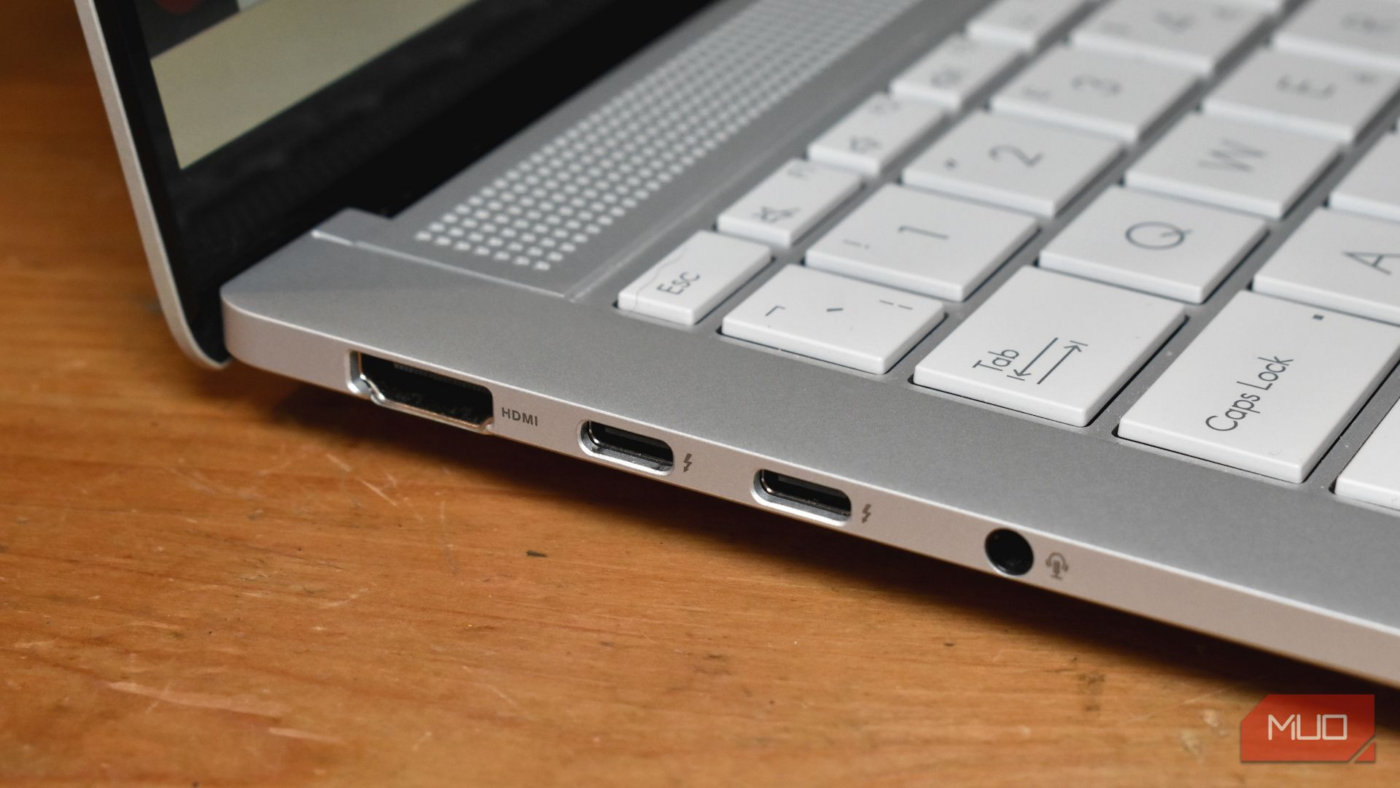
At first glance, a Thunderbolt port looks just the same as any old USB-C port. Same shape, same cable, same satisfying click when you plug something in. But that small lightning bolt symbol next to the port signals something very different happening under the hood.
Towards the end of 2025, I bought a new laptop and was reminded of how incredibly useful Thunderbolt ports are, especially the latest iteration, Thunderbolt 5.
What’s interesting is that, externally, nothing looks special. But in reality, that tiny lightning symbol unlocks faster speeds, extensive display support, and hardware options unavailable to a regular USB-C port.
Thunderbolt is one of those bits of tech that you might not know you’re using, but when you do, you’ll never want to stop. With that said, I have one major gripe with Thunderbolt that, for the life of me, I cannot understand why they don’t fix!
It looks like USB-C, but it’s way better
The lightning symbol changes everything

The confusion between USB-C and Thunderbolt is understandable. All the tech goes through the connector, USB-C, but it doesn’t actually completely explain what the port can do.
A basic USB-C port supports charging and data transfer, and can potentially handle high-speed data transfer and higher levels of power delivery. However, at a glance, the port typically doesn’t tell you what you’re getting; it’s basically guesswork most of the time. And that’s before you even consider the problems with USB-C roulette.
Thunderbolt is a standard built on top of USB-C. When you see the lightning symbol on a USB-C port, it shows that it conforms to a different, strict set of requirements. The standard covers speed, connectivity, display support, expansion cards, power delivery, and more.
|
Feature |
USB-C (Generic) |
Thunderbolt 5 |
|---|---|---|
|
What it is |
A physical connector shape |
A high-performance connection standard |
|
Connector used |
USB-C |
USB-C |
|
Maximum data speed |
480Mbps → 40Gbps (varies widely) |
80Gbps (bi-directional) |
The latest version of the standard, Thunderbolt 5, is a massive jump from what the basic USB-C port can offer… depending on the USB generation. Here’s the thing: USB-C is a connector. It can only work with the specs of the USB generation it’s built to work with, i.e., a USB-C cable that uses USB 3.0 or USB4.
That’s the most important thing to remember when trying to figure out the whole USB-C, USB 3/4, Thunderbolt confusion.
Thunderbolt is fast
It’s not all about speed, but it’s a big part of it
A core part of what makes Thunderbolt so good is speed. It’s faster than USB 3.x and USB4, and by a considerable distance.
Thunderbolt 5 offers 80Gbps bi-directional throughput. More importantly, it can dynamically boost bandwidth up to 120Gbps in one direction when displays need it.
That doesn’t just mean faster file transfers. It means the connection can intelligently prioritise what you’re doing — whether that’s pushing pixels to high-resolution monitors, feeding data to ultra-fast external storage, or running multiple devices through a single dock.
|
Feature |
USB4 |
Thunderbolt 5 |
|---|---|---|
|
Connector |
USB-C |
USB-C |
|
Maximum bandwidth |
Up to 40Gbps (optional) |
80Gbps bi-directional |
|
Dynamic bandwidth boost |
Not required |
Up to 120Gbps one-way |
|
PCIe support |
Optional |
Required |
|
External GPU support |
Unreliable/inconsistent |
Guaranteed |
|
Display support |
Varies by device |
High-res, high-refresh guaranteed |
|
Docking reliability |
Depends on implementation |
Consistent across certified devices |
|
Cable requirements |
Generic USB-C cables |
Certified Thunderbolt 5 cables |
For example, the latest USB standard, USB4, supports speeds of up to 40Gbps. But you’re not guaranteed to get that. Furthermore, USB4 implementations aren’t required to hit that speed, as it’s the theoretical maximum. USB4 actually comes in two tiers (20Gbps and 40Gbps), and given that it’s difficult for devices to hit that top speed, most manufacturers don’t bother including support.
But if you see the Thunderbolt symbol, you know you’re guaranteed the fastest speeds allowed by the standard (40Gbps for Thunderbolt 4, up to 80Gbps for Thunderbolt 5).
Display connectivity is the big game changer
Thunderbolt sweeps the floor here

Aside from speed, display support is one of the biggest differences between Thunderbolt and other USB standards.
Regular USB-C display output uses what’s known as DisplayPort Alt Mode. It’s an optional implementation, and it’s not consistently applied across ports and cables. Some USB-C ports support one external display, some support two, and refresh rates or resolutions can drop unexpectedly when you connect a dock.
Thunderbolt removes that uncertainty and is designed to work effectively with all modern displays, and all that through a single cable.
- Multiple 4K displays at high refresh rates: Thunderbolt 5 can drive up to three 4K monitors at 144 Hz from a single port on compatible systems.
- 8K displays: Dual 8K displays at 60 Hz are feasible over a single Thunderbolt 5 connection.
- Bandwidth to match: Thunderbolt 5 delivers up to 80 Gbps bidirectional bandwidth, with a “Bandwidth Boost” that can push video-focused traffic to ~120 Gbps one way — this extra headroom is what lets these big displays work smoothly.
- DisplayPort 2.1 support: Thunderbolt 5 integrates DisplayPort 2.1 Alt Mode, enabling it to natively carry very high-resolution video signals like 8K@60 Hz or even 4K@240 Hz with compression (DSC) on suitable hardware.
With Thunderbolt 5, display support is part of the guaranteed spec, which means you get predictable behaviour — especially important on docks or multi-monitor setups.
External device support is also unmatched
Faster and more stable, with better bandwidth
Now, the other huge improvement you get from Thunderbolt is PCIe support. PCIe is the technology internal components use to communicate with the system. Thunderbolt tunnels PCIe over a USB-C cable, which gives you a much wider range of supported external hardware.
For example, you can run a powerful external GPU over Thunderbolt and be assured you’ll actually get the proper data transfer speeds. Similarly, external NVMe SSDs will deliver their proper data rates, which can sometimes be difficult to achieve with a regular USB connection.
As part of that, though, Thunderbolt can also handle multiple high-bandwidth devices simultaneously. Thunderbolt allocates its bandwidth dynamically, which allows you to run external storage, multiple displays, peripherals, and more, without experiencing the dreaded data drop-off you get with USB.

I’ve ignored these symbols on my USB ports for so long and now I regret it
Those tiny USB symbols reveal more than you think.
Thunderbolt does have some downsides
It’s not without issue
Like anything in life, Thunderbolt isn’t perfect. It has a few issues and quirks that you need to know about.
My biggest gripe is something that also affects USB-C: you can’t tell what version of Thunderbolt you’re using at a glance. My laptop has Thunderbolt 4 ports, but the symbol is just the standard lightning bolt. I know the specs because I bought this laptop, but if you’re approaching a new device and haven’t read the spec sheet, there is no way to tell at a glance.
It’s also more expensive, full stop. If your device supports Thunderbolt, you’re probably paying a premium for it. For all the good that Thunderbolt brings to your device, the extra tech specification adds overhead, development time, requirements, and so on. And while Thunderbolt license-holder Intel (which developed Thunderbolt with Apple) dropped its licensing fee with Thunderbolt 3, anything using the tech must strictly adhere to the standards.
That same cost also applies to Thunderbolt-supported monitors. Expect to pay a few hundred bucks more for a Thunderbolt-enabled screen than for one that supports only USB-C DisplayPort Alt Mode.
Either way, Thunderbolt is a super handy addition to your laptop or motherboard, and I know I’d much rather have it than not, even with the extra costs.
source
Note: All product names, brands, and references in this post belong to their respective owners.
For more smart home guides, lifestyle tech updates, and UAE-focused recommendations, visit blog.thikra.co.
To shop smart gadgets, accessories, and lifestyle electronics, explore Thikra Store at thikra.co.








Leave a Comment