
Thikra Blog shares smart living tips, home gadget updates, and lifestyle technology insights tailored for UAE readers.
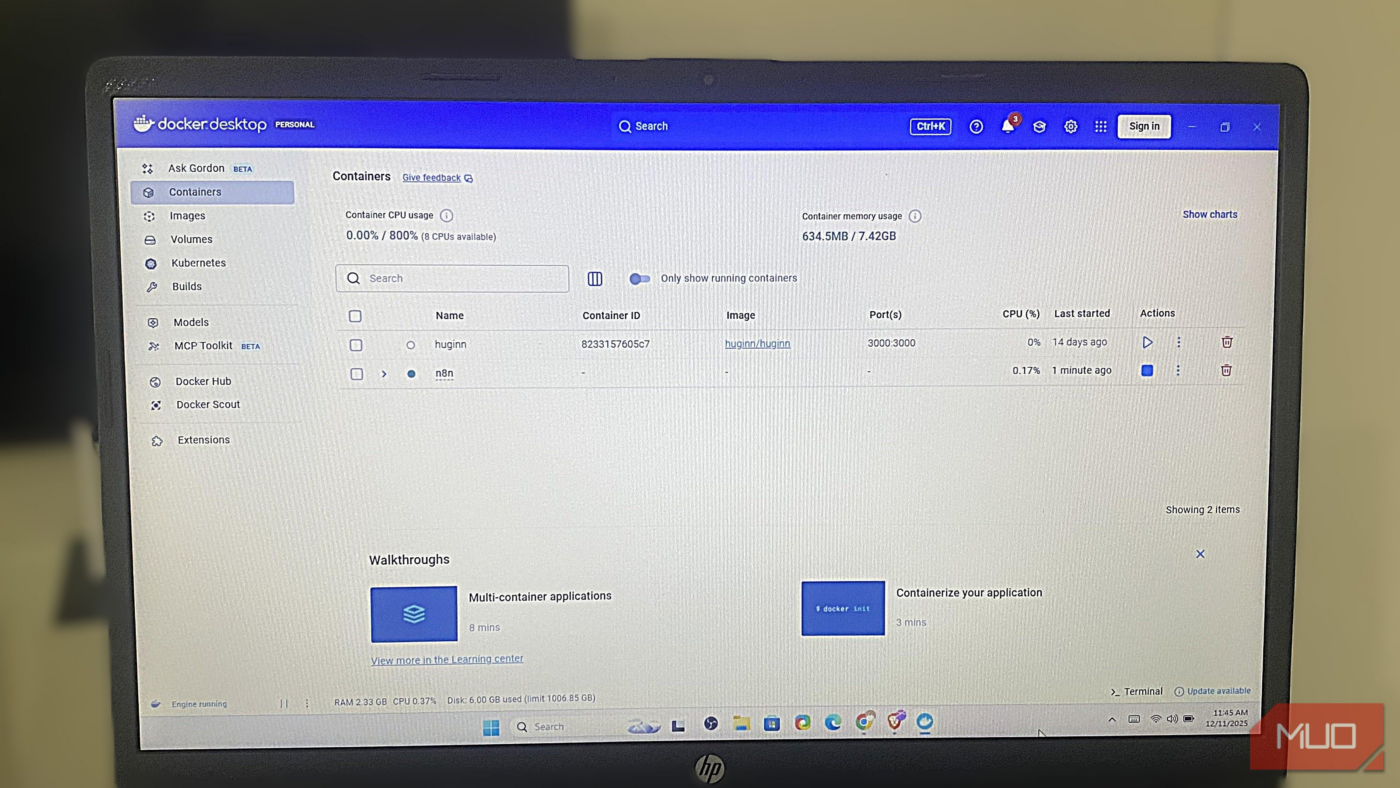
Docker lets applications and their dependencies run consistently on your computer by packaging them into containers, which are portable, isolated environments. It’s the ideal solution if you want reliable, repeatable workflows without worrying about whether a tool or system works on your machine.
But effective use of Docker goes beyond installing and running containers. You’ll get the best out of Docker when you know the commands that give you visibility, control, and efficiency. Mastery of the right commands transforms Docker into a tool that you can use confidently every day. So, I figured out the top commands you must master to be an accomplished Docker admin.
Docker compose
Run multi-service environments with confidence
Before I started using the Compose command, I ran containers one by one and could only hope they connected correctly. This approach was manual and often led to an error-prone workflow. However, using this Compose command transformed Docker into an automated, single-command workflow in which services, images, ports, environment variables, and volumes are defined in a docker-compose.yml file.
The command below allows me to start the entire stack in the background:
docker compose up -d
After experimenting, I brought everything down with the command:
docker compose down
With this simple pair of commands, you will have better control over Docker.
Docker exec -it <container> bash
Troubleshoot containers from the inside

It’s essential to know how to troubleshoot Docker containers, and the command below is my go-to. I use it when I need to inspect file paths, verify configs, run quick tests, or debug issues exactly where they happen:
docker exec -it myapp bash
If bash isn’t available, I can switch to this command:
docker exec -it myapp sh
Using either of these commands will open an interactive shell, allowing me to explore the container’s actual environment. These commands have come in handy for checking missing dependencies, confirming environment variables, and inspecting logs directly from within the app. Entering containers makes troubleshooting less frustrating and more logical.
Docker logs -f <container>
Read live logs and stop guessing

Logs offer a helpful way of exposing problems beneath the surface, and this Docker command comes in handy:
docker logs -f myapp
With the command, I access the logs when a container fails to start. I include the -f flag to keep the log streaming live. That way, I can watch the container’s startup sequence unfold. It becomes easier to notice a missing database credential, environment variable typos, or poorly configured ports.
Sometimes, logs can be long, making it hard to find specific elements or troubleshoot. I thus limit the log results I see to the last 50 lines using the command below:
docker logs --tail 50 myapp
I began to appreciate Docker more when I understood that logs are a direct conversation with my containers, not noise.
Docker build
Build predictable images with proper tagging

The build command tells the Docker daemon to start the image creation process. When I started using Docker, my builds were messy. I wasn’t tagging anything and would quickly end up with several unlabeled images. The command below fixed my messy, untagged builds:
docker build -t myapp .
Including the -t flag tags the resulting image, making it easier to reuse and deploy. Going a step further, I add versioning with the command below:
docker build -t myapp:v1 .
With this, I can test features without losing track of stable builds. Another benefit of tagging is clutter prevention, eliminating “dangling” images that waste space.
I find tagging essential when working with CI because it provides my pipeline with a predictable image reference. A clean tag gives you a version you can trust.
Docker ps -a
Stop losing track of containers

After using Docker for a while, I lost track of my containers, which made the tool feel unpredictable. Certain ports stopped binding, and Docker sometimes refused to create containers because several containers I thought I had removed were still there. Then I discovered the below Docker command, which displays containers that exited, failed, or stopped immediately:
docker ps -a
I can use the command below for scripting or quick cleanup, as it returns only the container IDs:
docker ps -q
To delete a forgotten container, I use the command:
docker rm
I still believe one of the most underrated Docker skills is knowing what exists and what may be quietly failing.
Docker inspect <container>
View everything about a container in raw detail

The docker inspect command offers clarity when Docker starts showing connectivity issues or unexpected behavior. Below is the basic form of the command:
docker inspect myapp
This command shows every detail just as Docker sees it, including environment variables, network settings, volumes, and entry points. I can use the command below to extract a specific container’s IP address when I’m curious about a particular element.
docker inspect --format='{{.NetworkSettings.IPAddress}}' myapp
By running these focused commands, I can avoid wading through an exhausting number of JSON pages to debug misconfigurations.
Docker system prune
Clean unused Docker resources safely

Once you start using Docker, it will silently accumulate clutter, such as old images, unused networks, and stopped containers. Over time, this will slow everything down if not cleaned. I start my cleanup routine with the safe version:
docker system prune
This command keeps my images, but removes unused containers and networks. I can perform a deeper cleanup and remove images as well by running the command below:
docker system prune -a
Finally, I can run the command below if I need to wipe unused volumes that may hold gigabytes of forgotten data:
docker system prune -a --volumes
Running the above command clears unused volumes, but some may be owned by root or another user. Understanding Linux ownership and permissions can make this process safer.
Easier Docker management for your workflows
If you find Docker intimidating, these commands are proper tools for clarity, control, and efficiency.
Several tools, such as my self-hosted Nextcloud instance, require Docker to run. Using these commands daily builds muscle memory and helps me become an expert at inspecting, debugging, and maintaining containers, and managing these services seamlessly.
source
Note: All product names, brands, and references in this post belong to their respective owners.
For more smart home guides, lifestyle tech updates, and UAE-focused recommendations, visit blog.thikra.co.
To shop smart gadgets, accessories, and lifestyle electronics, explore Thikra Store at thikra.co.








Leave a Comment