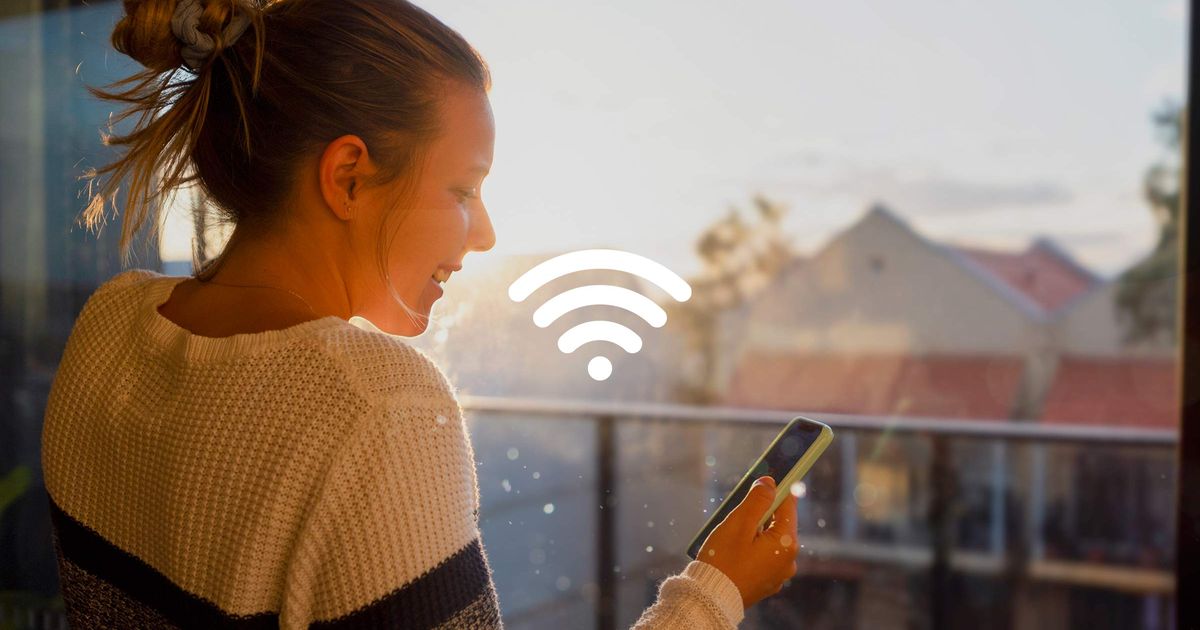

How to change your WiFi password and name
By Virgin Media Edit
All Virgin Media Hubs have a unique passphrase that you’ll need to access your WiFi. Like anything with a password, it is recommended that you change it regularly to something only members of your household will know.
Luckily, it’s super easy to do that as a Virgin Media customer, and we’re going to take you through what you need to do shortly.
But have you ever thought about also changing your default network name as well? While there is no real security benefit to doing it, it can be handy if you have guests trying to work out which network is yours. Or, you can even have a bit of fun with it. WiFi names are public, so it’s your chance to add some personality or a bit of humour.
There are two ways to change your Virgin Media WiFi network name and password in just a few easy steps. Here’s how:
For Hub 5, Hub 4 and Hub 3:
1. Enter 192.168.01 into the address of your web browser and enter your Hub’s setting password (not your WiFi password). This is located on a label on the underside of the hub. You must also be connected to the network you’re trying to change the name or password for.
2. Go to Advanced settings > Wireless > Security.
3. Change your WiFi Network Name (SSID) and/or WiFi password (security key) and select Apply changes.
If you have a Super Hub 2 or 2ac Hub, visit our help pages for a super useful how-to video that will take you through the steps. If you have a Hub 5, Hub 4 and Hub 3, there are also step-by-step videos. Find them all here.
1. Download My Virgin Media app.
2. Log in using your Virgin Media broadband credentials.
3. Go to Help > Reset hub password > Select hub type and click on Change WiFi network name or password > Online guide
Don’t forget, you’ll need to reconnect your devices, whether you’ve changed your network name and password via IP address or you did it using the Connect app.
If you are going to change your password, remember that the best passphrases include at least 12 characters with a mix of upper- and lower-case characters and numbers.
Can’t think of a good idea for your WiFi network name? It’s one of those rare moments in life where puns are actually welcome. Here are 10 suggestions to start you off:
1. I Can’t WiFi-ght This Feeling Anymore
2. WiFi So Serious
3. WiFi Art Thou Romeo
4. WiFi-ght The Inevitable
5. WiFi-nders Keepers
6. No More Mr WiFi
7. WiFi When You Can Run
8. WiFi Can’t We Be Friends
9. Hey, Get Your Own WiFi
10. WiFi Fo Fum
A word of caution: WiFi network names are public and can be viewable to people within range of you, so always be polite and keep it family friendly.
My Virgin Media app: Requires compatible Android 7.0 or iOS 12 or later mobile or tablet.
Virgin Media All Rights Reserved
To shop authentic smartphones, accessories, and power solutions, visit Thikra Store.




Leave a Comment