
Thikra Blog shares smart living tips, home gadget updates, and lifestyle technology insights tailored for UAE readers.
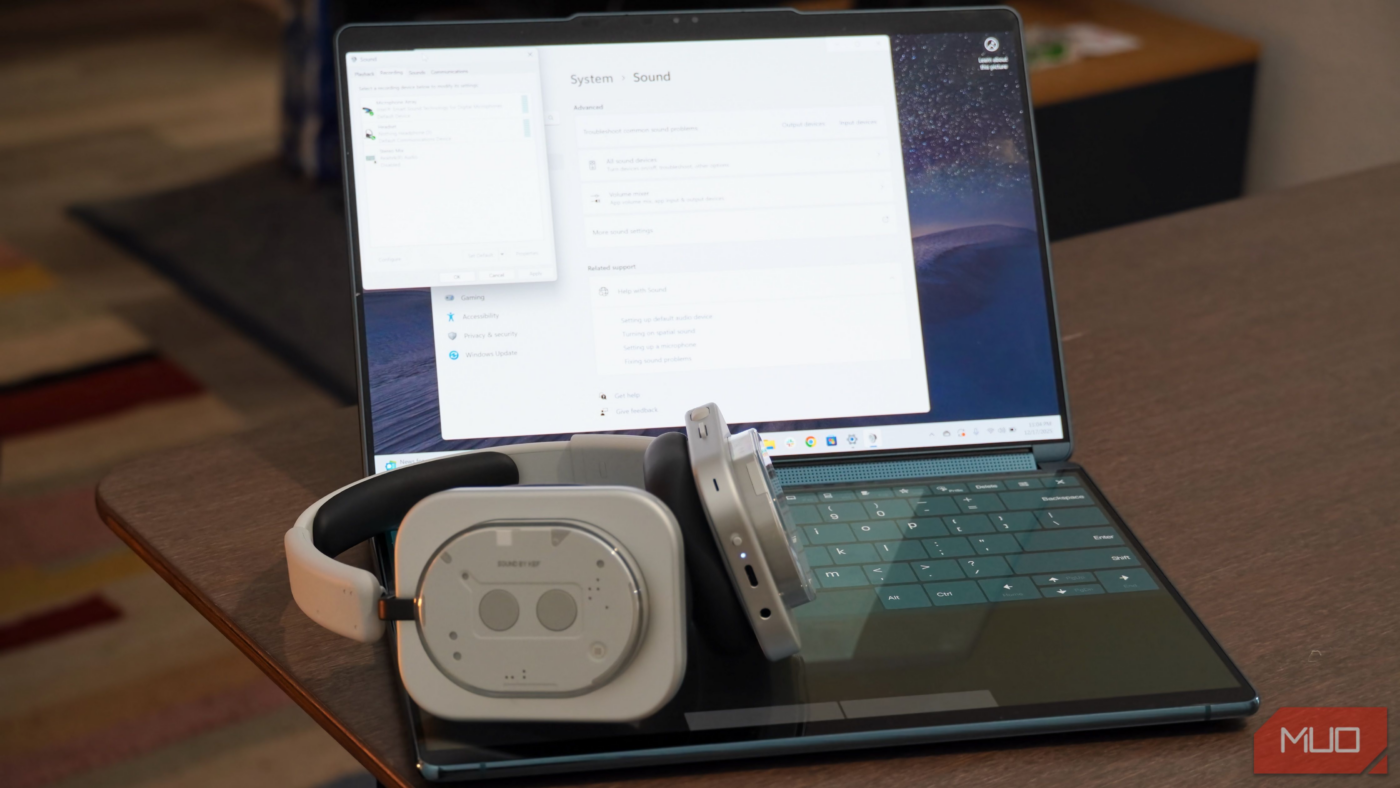
Wireless headphones are convenient for use across multiple devices, including your phone, tablet, or computer. However, you might find that your headphones’ sound quality varies depending on the connected device. Relying on a wireless connection between headphones and a Windows PC can result in shockingly poor sound quality. If your wireless cans sound worse on Windows than on other operating systems, you’re not alone.
It all comes down to the limitations of legacy Bluetooth standards. Older Bluetooth connections have bandwidth limits that make it impossible to deliver both high-quality audio and microphone recording simultaneously. If your wireless headphones are mistaken for a headset, their sound quality is immediately degraded. Luckily, there are steps you can take right now to ensure you’re getting the best audio possible.
Windows uses Bluetooth Classic Audio
Reverting to low-quality mono sound in certain situations
For most devices, Windows uses Bluetooth Classic Audio for connection with wireless headphones. Before the debut of Bluetooth LE Audio (which we’ll explain later), Bluetooth Classic Audio was simply known as Bluetooth. You’ve likely used it for years to connect wireless devices with one another, as Bluetooth Classic Audio was developed more than 20 years ago.
Bluetooth technology, this dated, is bound to come with limitations. Crucially, Bluetooth Classic Audio uses a lot of data and power to transmit audio. This means the standard can’t transmit high-fidelity audio and record microphone inputs simultaneously. When used as a headset, Windows 11 uses the Hands-Free Profile (HFP) for operation, which enables lower-quality sound playback and simultaneous audio recording.

Bluetooth Classic vs. Bluetooth LE: What’s Best for Audio Streaming?
With so many Bluetooth audio options to choose from, what’s best for audio streaming?
Meanwhile, when Bluetooth headphones are connected to a Windows 11 PC strictly for use as an audio output device, the Advanced Audio Distribution Profile (A2DP) is active. The A2DP supports stereo audio transmission with codecs like SBC, AAC, or aptX. Any device that supports Bluetooth Classic Audio and A2DP must support SBC as the default audio codec, but hardware manufacturers can tack on extra support for codecs like aptX Adaptive, LDAC, or LDHC.
When the Hands-Free Profile is in use, your wireless headphones revert to low-fidelity mono audio. You’ll only get one channel of audio and lose support for high-fidelity Bluetooth codecs and spatial audio. In a support document, Microsoft itself reveals that when HFP is in use, “the audio quality is still closer to an AM radio than it is to the CD quality audio that Bluetooth provides when not using the microphone.”
Here’s what you can do about it
Manually disable mic inputs to enable better codecs

Windows 11 often trips up with wireless headphones because they often include microphones, leading the operating system to treat them as headsets mistakenly. Of course, you may want to use a wireless pair of headphones like a headset for gaming or video calls. But if Windows 11 recognizes your headphones as a headset when you’re listening to music, you’ll hear low-fidelity mono audio.
Without replacing Bluetooth Classic Audio entirely, there is no perfect solution to Windows’ handling of wireless headphones. However, there are a few steps you can take. If you’re affected by this issue, you essentially need to force Windows 11 to ignore your headphones’ built-in microphone.
To do this, open the Settings app, find the System -> Sound tab, and click More sound settings. From there, switch to the Recording tab in the small window that appears, and select your wireless headphones. Right-click the name of your headphones and click Disable. Wait for your headphones to reconnect, or manually power-cycle them to finish. This will disable your wireless headphones as a recording device, forcing Windows 11 to use the higher-fidelity A2DP.
Windows 11 tends to automatically re-enable wireless headphones as recording devices, so follow these steps again if you hear a drop in audio quality.
How Microsoft is fixing the problem
Windows 11 is now using Bluetooth LE Audio

For newer devices, Microsoft is fixing this longtime Windows problem—which predates Windows 11—once and for all. Bluetooth LE Audio is an alternative to Classic Audio that leverages Bluetooth Low Energy radios to deliver versatile new audio profiles with lower battery consumption. Instead of A2DP and HFP, the Telephony and Media Profile (TMAP) handles high-fidelity music playback and voice recording simultaneously.
With the TMAP active, Bluetooth LE Audio in Windows 11 can provide up to 32kHz sample rates for audio playback while enabling microphone use. As such, Windows 11 users will no longer need to worry about whether the A2DP or HFP is active. There’s just one catch: you need a supported computer, a supported pair of headphones, and a supported version of Windows 11 to use Bluetooth LE Audio.
You can check Microsoft’s support document to find out if your PC supports Bluetooth LE Audio. It’s also a good idea to make sure your computer is updated (you need Windows 11 version 24H2 or newer) and you have the latest Bluetooth audio drivers from your PC manufacturer. As of now, not all Windows 11 PCs or wireless headphones support Bluetooth LE Audio.
For a bit longer, Windows users will still need to make sure their headphones aren’t being registered as headsets. However, Microsoft says it expects “most new mobile PCs that launch starting in late 2025 will have support from the factory.” A longstanding Windows wireless audio flaw may not be a major problem much longer.
source
Note: All product names, brands, and references in this post belong to their respective owners.
For more smart home guides, lifestyle tech updates, and UAE-focused recommendations, visit blog.thikra.co.
To shop smart gadgets, accessories, and lifestyle electronics, explore Thikra Store at thikra.co.








Leave a Comment