
Thikra Blog shares smart living tips, home gadget updates, and lifestyle technology insights tailored for UAE readers.
Using Apple CarPlay is one of the best features Apple users get by having an iPhone. I truly believe that because it makes it safer and easier to drive. Remember having to use single-ear headsets to call people in the car? Even though you could make calls, you’d still have to look at your phone to dial, and you could never text hands-free.
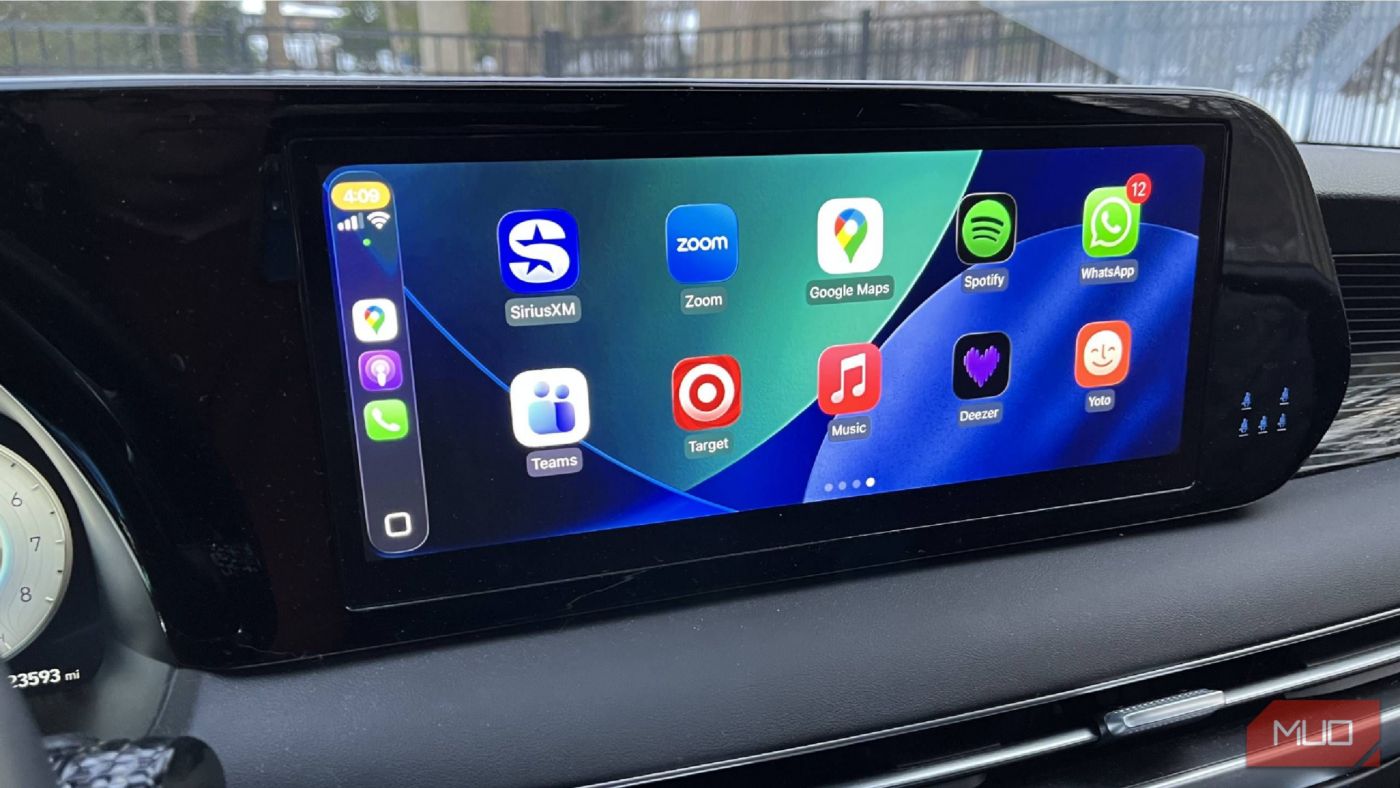
Tech like Android Auto and Apple CarPlay lets users communicate safely while driving and listen to a wide range of music and entertainment. If you have CarPlay or Android Auto, you don’t need a GPS unit in your car, as it will show you directions as well. CarPlay has become a must for me almost any time I drive, but I have been dealing with connection issues a lot. Turns out, there were a few steps I needed to take to ensure a better connection.
Cleaning my iPhone’s port was a must
Finding lint and such was unsurprising

In the past, when I’ve had issues with my iPhone charging, I’ve had to clean out the charging port. My phone spends most of its time in my pocket, and over time, the port can get gunked up slightly with lint. When my iPhone wasn’t working well recently, when I was plugging my phone in to use Apple CarPlay, I went that route as my first step.
What I found was surprising, as there was a lot of lint and such stuck in there. I’ve used professional cleaning kits before, as well as toothpicks. It’s smartest to use a professional cleaning kit if you can. But if you are delicate enough, you can get away with using something like a toothpick or even a paper clip, as you see above.
What you want to do to clean your iPhone is gently feel around the port, whether it’s a Lightning port like my phone has or a USB-C port, like other iPhone models have. Doing a downward sweeping motion can dislodge some of the potential, and then sweeping upward can bring it to the surface so you can get it out of the port.
It’s a good place to start, as that could affect how your phone is connected to the car. Doing this regularly will prevent your phone from accumulating lint and debris in the port.
Make sure you have the right cable
Something that is certified by Apple is best
Both of my cars have Apple CarPlay. In fact, I had asked about having a GPS chip in one of the cars, and the salesperson said, “You don’t need that. Just plug your phone in for CarPlay and use Google Maps.” He was right, and it saved us money from relying on the car itself for navigation.
One of the cars was connecting fine with my iPhone 13, and the other was not. I’d be driving and, all of a sudden, CarPlay would stop working. This is incredibly frustrating if you’re trying to follow directions or listen to something, and all of a sudden, the display just goes back to a menu, and the entertainment or navigation stops.
You must enable CarPlay to function when the phone is locked in order for it to operate continuously. Go to Settings –> General -> CarPlay –> Allow CarPlay When Locked.
As I was trying to figure out why only one of the cars worked well with CarPlay and the other did not, I realized that the cables I have in the two cars were different. One was an Apple-certified USB cable, and the other was one I bought for a few bucks at a random store because I needed another cable.
While I’m not always the person who loves having to buy manufacturer-specific brands, sometimes it is a necessity. In this instance, I found it to be that way. The orange cable, even after cleaning out the port on my phone, was still not working great and was randomly disconnecting.

These apps make Apple CarPlay so much better
Revolutionize your driving experience with these game-changing CarPlay additions.
Other ways to try reconnecting
If it isn’t your cable, it might be this

You might not even need a cable to connect your phone to your car to use CarPlay. Some vehicles allow for built-in wireless CarPlay connectivity. If yours does, you need to enable both Wi-Fi and Bluetooth. Wirelessly connecting to your car’s CarPlay can be a more reliable option if the settings remain.
If you are worried about your wired connection, there are some steps you can take to reset it. For one, you can shut off your car and turn it back on again, while doing the same on your phone. The blanket reset for both machines can sometimes work.
You can make sure that your software is up-to-date for both machines as well. Your car should be doing automatic updates to its infotainment system. If so, there’s not much that you need to do for it to update. Checking for the latest update on an iPhone is found in General –> Software Update.
To take your reset another step, you can forget the device from your car and forget the car from your phone. In the infotainment system, you can go to the paired devices list. Removing the iPhone can let you reinstall it and bring it back on track. The same goes for going into your Bluetooth settings on the iPhone and tapping on the name of your vehicle before tapping Forget.
A simple change in hardware made it simple to reconnect
My Apple CarPlay was losing its connection to my iPhone, and I finally traced it to the third-party cable. The spotty connection was driving me crazy, but swapping out for an Apple-certified cable proved to do the trick. I did clean out the Lightning port on my phone as well to help with the connection. While my car doesn’t allow for a wireless CarPlay connection, that’s another way to get around this issue for some people. Using Apple CarPlay helps me drive more safely.
source
Note: All product names, brands, and references in this post belong to their respective owners.
For more smart home guides, lifestyle tech updates, and UAE-focused recommendations, visit blog.thikra.co.
To shop smart gadgets, accessories, and lifestyle electronics, explore Thikra Store at thikra.co.




Leave a Comment