
Thikra Blog shares smart living tips, home gadget updates, and lifestyle technology insights tailored for UAE readers.
I’m not the biggest fan of mainstream cloud storage like OneDrive, simply because I prefer open-source options that give more control. However, it’s hard to deny how convenient OneDrive is, which makes it an easy choice for many people. It easily integrates with Windows, and for the most part, restores your files silently.
That said, it doesn’t act like a proper backup tool. If you mistakenly delete a file in the wrong place, that mistake spreads everywhere. Proper backups should protect you even from yourself and from unexpected failures. I found a way to make OneDrive a more worthy backup tool. The tool itself hasn’t changed; certain configuration choices can improve the backup experience.
Known Folder Backup
Automatically protect Desktop, Documents, and Pictures

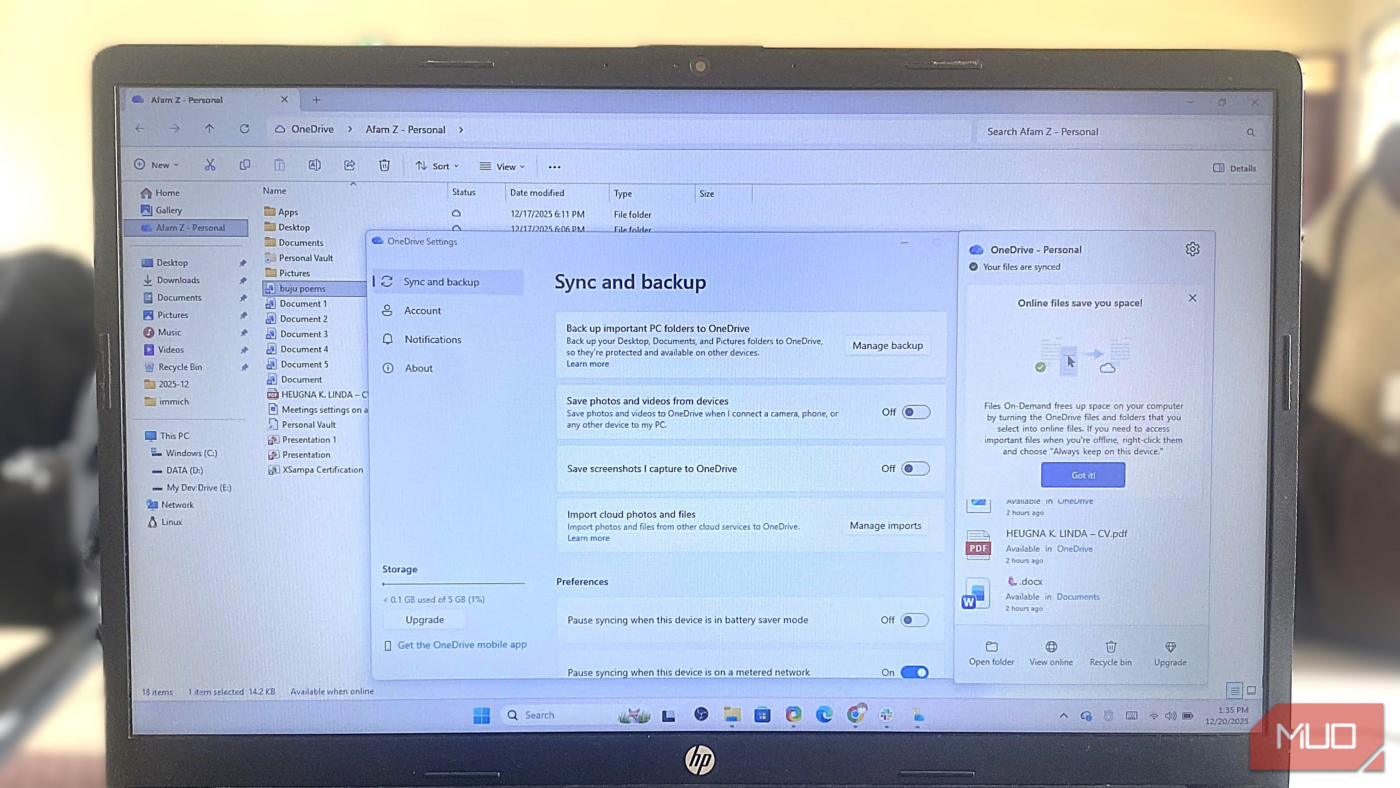
Known Folder Backup is the one setting that makes OneDrive behave like a proper backup rather than the place you occasionally save files. Using this feature eliminates the constant need to think about where your files live. You stop manually dragging files into OneDrive, because it automatically protects your Desktop, Documents, and Pictures folders.
To enable this setting, follow these steps:
- Open the OneDrive desktop app.
- Navigate to Settings -> Sync and backup -> Manage backup.
- Toggle on all desired folders.
Once done, OneDrive automatically backs up anything saved in those locations. This setting is essential because several apps still save locally by default, and OneDrive will not automatically back up their data.
Always keep your data on this device
Create local and cloud redundancy for critical folders

OneDrive’s Files On-Demand is useful, but having cloud-only files creates a single point of failure. It is the safer option to keep both a local and cloud copy of folders you genuinely value, since a proper backup strategy relies on redundancy. Always keep on this device is the solution. To enable it, follow these steps:
- Right-click on a critical file or folder.
- Select Always keep on this device.
I avoid applying this setting to everything. I only use it for active projects, personal documents, and things I wouldn’t want locked behind an internet outage. It’s an essential step in balancing storage use with resilience. Putting all your information in one place is one of the most common data mistakes people make.
Version history
Roll back files after accidental edits or corruption

Deletion is not the only way people lose data. Bad edits, overwritten files, or subtle corruption that syncs everywhere are common reasons files get lost. Version history on OneDrive protects against this.
Version history isn’t an on/off setting; people simply forget to use it, which undermines the benefits of a true backup strategy. To use it, follow these steps:
- Right-click a file in File Explorer.
- Click Show more options, then Version history.
I find version history to be an essential tool that prevents small mistakes from becoming permanent. It also protects you from the downside of sync, where errors spread quickly.
Restore OneDrive
Recover your entire OneDrive from major disasters

In situations where something goes really wrong, you may not be able to restore individual files. The closest option on OneDrive to a complete system rollback is restoring OneDrive. To use this feature, follow these steps:
- Open OneDrive on the web.
- Navigate to Settings –> Restore your OneDrive.
This feature works across all your connected devices but does not require any prior setup. In extreme cases, it saves you the stress of sifting through multiple files and folders to repair damage. You only have to rewind everything at once. You have 30 days to restore your OneDrive if files are deleted, overwritten, corrupted, or infected.
This feature requires a Microsoft 365 subscription.
Personal Vault
With proper backups, you realize that not all files require the same level of protection. You may use OneDrive’s Personal Vault to add an extra layer of security on top of normal syncing. I use this for documents like IDs, tax records, or legal files.
If you use this feature, it will store the selected files in a BitLocker-encrypted area on your device. Free accounts are limited to only three files in the Personal Vault, but this may suffice for your most critical documents.
To unlock the Personal Vault for the first time, click the OneDrive icon on your taskbar and select Unlock Personal Vault. A wizard will guide you, and once complete, you’ll be able to use this secure area.
OneDrive mobile app
Extend backup coverage to your phone

True backup cuts across platforms and, since our mobile devices often hold our most important data, OneDrive can back up that information using the OneDrive mobile app, just like your PC data.
Your mobile data will instantly benefit from version history, the Recycle Bin, and account-wide restore, just like your PC. This makes OneDrive feel like a complete backup system.

6 Simple Ways to Back Up Your Data Safely
Avoid risking lost files by learning how to back them up securely.
When sync stops being a gamble
I don’t believe OneDrive is a perfect data solution. It may never be as good as some offline-first or open-source backup tools. However, configuring it properly and using some essential features make it a bit better than you might typically give it credit for.
I don’t place blind trust in OneDrive; I use layered protection. These settings make it a bit more dependable.
source
Note: All product names, brands, and references in this post belong to their respective owners.
For more smart home guides, lifestyle tech updates, and UAE-focused recommendations, visit blog.thikra.co.
To shop smart gadgets, accessories, and lifestyle electronics, explore Thikra Store at thikra.co.










Leave a Comment