
Thikra Blog shares smart living tips, home gadget updates, and lifestyle technology insights tailored for UAE readers.
For most people, their computer desktop is a mix of friction and efficiency. We perform certain routines countless times a day, like launching apps, opening the same websites, arranging windows, and typing repetitive text. Even though these tasks are not necessarily complex, they are repetitive and add up. The only way to truly reclaim my time was by automating my Linux desktop.
This led me to specific GUI-based automation tools that actually work. With each one meeting a particular need, I’ve been able to build workflows that launch apps, fill in text, interact with stubborn applications, and even run in the background without my input. I love recommending GUI-based Linux tools, and they make these automations perfect because, after setup, you don’t need the terminal. Tasks that used to take 10–15 minutes now run automatically, removing the friction I had in the past.
Actiona
The first automation that made Linux feel effortless
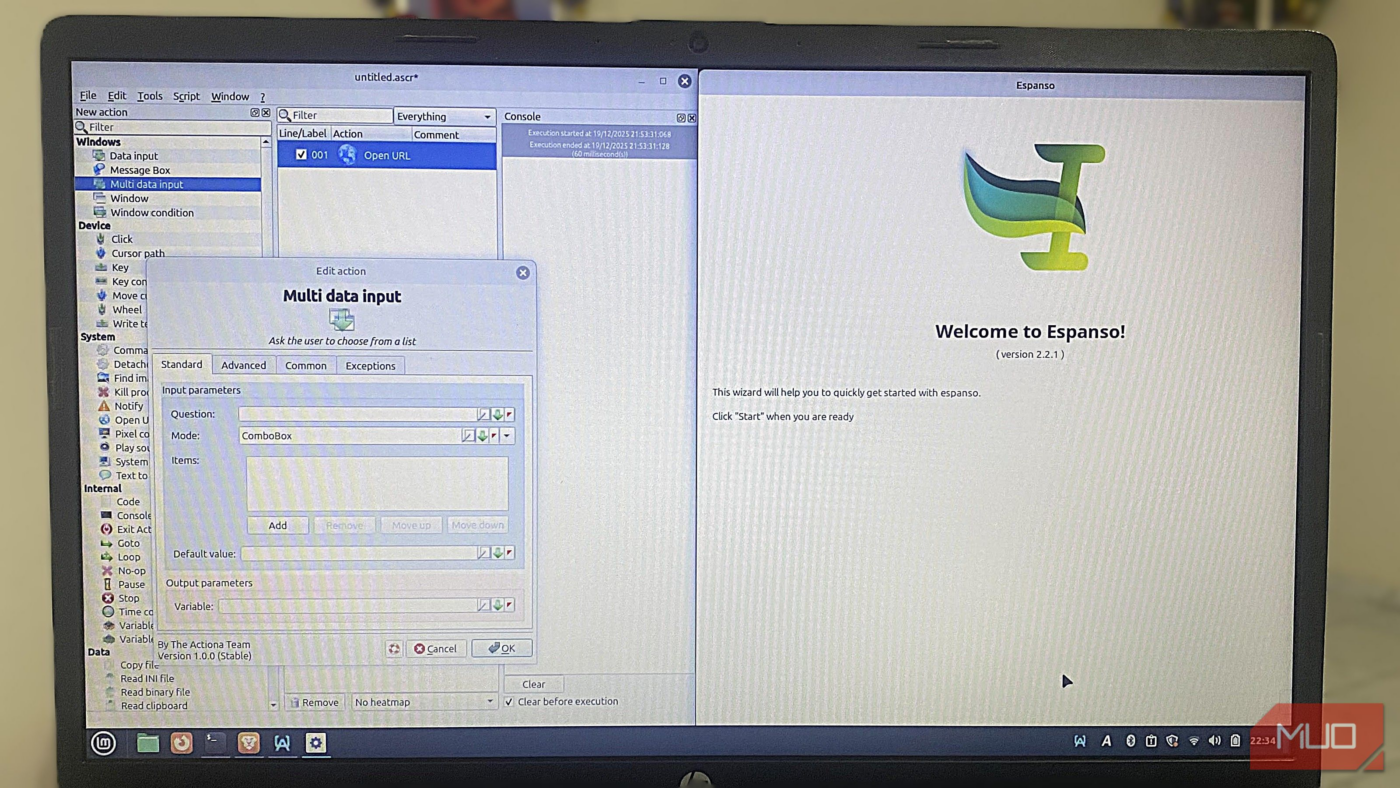
Before I start work, I go through a routine: launch my browser, open a specific list of websites, launch my writing apps, then arrange my windows to best suit the immediate task. Well, this was my workflow until I started automating with Actiona. Because Actiona is included in the Debian/Ubuntu‑based repositories that Mint uses, I run these two commands to install it:
sudo apt updatesudo apt install actiona
The first automation I built replaced the entire routine before I started work:
- I created a new project and added a Launch application action for my browser, then another one for the writing app.
- I inserted Wait for window steps so that Actiona doesn’t move ahead too fast.
- I then used Open URL actions that automatically load my sites.
- Finally, I included a simple window check to ensure my workflow skips already-running apps.
In all this, the biggest surprise was how natural creating an automation felt. You select the steps from a menu, and they all read like a sentence. Rather than scripting, it felt more like I was describing.
AutoKey
Removing repetitive typing from my daily workflow

Before I started using AutoKey, I often found myself retyping the same text across apps: my full sign-off, standard replies, and small blocks of text I use while editing. It was helpful to use copy-paste, but it also broke my workflow when I had to switch between browsers, email, and text editors. AutoKey is also available directly from the default repositories, so I installed it by running the commands below:
sudo apt updatesudo apt install autokey-gtk
After installation, AutoKey is available in the Applications menu. The first action I took was to create a global shortcut for my email sign-off. The steps are easy:
- Launch AutoKey and navigate New > Script to create a blank text-based script in the left panel.
- Paste the sign-off exactly as it should appear in the editor on the right.
- Next, open the script’s settings and assign a hotkey (the hotkey must not conflict with any system shortcuts).
- Lastly, save the automation.
From that point on, pressing that hotkey typed the entire text block wherever the cursor was, and it worked in all apps and windows on my computer. Several of the best AutoHotkey scripts on Windows are easily adaptable here.
SikuliX
Automating apps that don’t expose proper controls

One issue I’ve had with Linux is that apps don’t always have the same level of polish as on Windows. Some don’t expose useful keyboard shortcuts, and others don’t have identifiable UI elements. I’ve run into several utilities that require me to click the same unlabeled button every time I use them. SikuliX fixes this by allowing me to automate anything I can see.
SikuliX is Java-based, so the first step is installing Java using these two commands:
sudo apt updatesudo apt install default-jre
With Java installed, the command below will install SikuliX:
wget https://launchpad.net/sikuli/sikulix/2.0.5/+download/sikulixide-2.0.5.jarjava -jar sikulixide-2.0.5.jar
This tool is quite simple to use. I only had to capture a screenshot of a button I needed to click and used SikuliX’s visual matching to tell it, “When this appears on the screen, click it.” I also added a short wait to ensure the button is clearly visible on the screen.
SikuliX turned out to be more reliable than I expected. And regardless of where the window is placed or how it scales, SikuliX works well. Even though I don’t use this tool often, it’s my go-to when an app blocks every other approach.
Espanso
Turning short triggers into useful content everywhere

Espanso handles a quieter kind of automation, which I rely on constantly. I use it for text, but in a different way than AutoKey. It replaces short keywords with frequently used text, images, or dynamic commands.
I run two commands to get it. The first downloads the latest Debian package and the second installs it:
wget https://github.com/espanso/espanso/releases/download/v2.2.1/espanso-debian-x11-amd64.debsudo apt install ./espanso-debian-x11-amd64.deb
The version part of the download URL may need to be updated for subsequent Espanso releases.
Since Espanso uses a systemd service to manage its background process, these two commands initialize it:
espanso service registerespanso start
I use it to expand a short trigger into a structured paragraph template. You typically have to define the trigger, paste the complete template, and add placeholders so you can tab through and customize it quickly. I have a snippet set up to add today’s date in my preferred format automatically, and it works in any app.
I love using it for automation because it has no windows to manage or actions to trigger manually. It automates expressions more than automating tasks. My text simply expands when I need it to.
When my Linux desktop finally stopped asking for my attention
This setup is powerful, but what’s most surprising is how approachable it feels. I am not rethinking how Linux works, nor am I bending workflows around tools. Each automation reduces friction in my workflow. These automations are an excellent tip I recommend to people switching from Windows.
Of course, you may not use these tools exactly how I do; that’s not the goal. I only aimed to show what’s possible. You should make these tools work with your workflow to achieve real productivity.
source
Note: All product names, brands, and references in this post belong to their respective owners.
For more smart home guides, lifestyle tech updates, and UAE-focused recommendations, visit blog.thikra.co.
To shop smart gadgets, accessories, and lifestyle electronics, explore Thikra Store at thikra.co.




Leave a Comment