
Thikra Blog shares smart living tips, home gadget updates, and lifestyle technology insights tailored for UAE readers.
If you have an old Windows PC and complain about how slow it performs, you’ll be advised to just install Linux. So, I tried the lightweight Linux route. While it works, it’s not for everyone, especially if you’re more comfortable using Windows.
Windows 11, however, has a bloat problem, so it’s not ideal for older PCs either. Rather than going with something like Tiny11, I decided to give AtlasOS, another popular Windows 11 mod, a shot. And to my surprise, it offered better performance than Linux Mint while retaining all the good bits of Windows.
What is AtlasOS (and what does it strip away)?
It’s not an OS, but a mod package

AtlasOS isn’t a separate operating system like Linux or a custom Windows ISO. It’s a “playbook” that modifies your existing Windows 10 or 11 installation using a tool called AME Wizard. To further simplify it, it’s a collection of tweaks and optimizations that run on top of a clean Windows setup.
Why use AtlasOS if it’s not an operating system? The playbook removes or disables components that Microsoft bundles by default that many of us never touch. This includes telemetry services, advertising IDs, Cortana, OneDrive integration, and various background processes that constantly phone home. It also strips out Windows Defender if you choose, though I’d recommend keeping it enabled unless you have another antivirus solution. And I still have all the Windows features I missed when using Linux, but without the bloat.
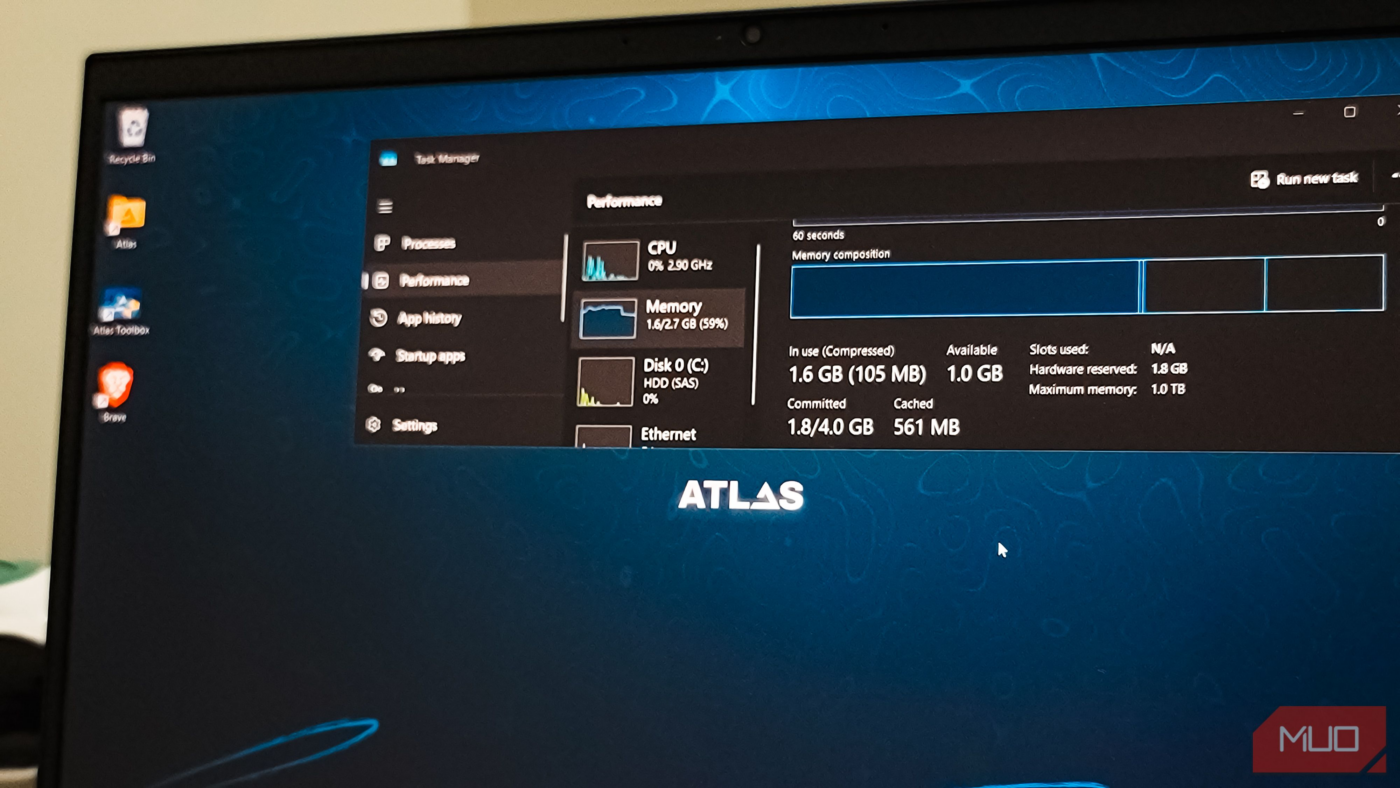
To keep things realistic, I tested AtlasOS on my partner’s Acer laptop powered by an Intel Pentium processor and 4GB of RAM. To my surprise, after applying the package on my test machine, the process count dropped from around 158 to about 84, and idle RAM usage went from roughly 3.5GB to 2.8GB. That’s a significant chunk of resources freed up, considering the laptop only has 4GB of total memory.
AtlasOS also gives you granular control during setup. You can decide whether to keep Windows Update enabled, disable hibernation, turn off power-saving features, or remove specific apps like the Snipping Tool. It even offers to install an alternative browser like Brave or Chrome during the process if you want to ditch Edge entirely.
Installing AtlasOS
Needs a freshly installed Windows 11 setup
AtlasOS works best on a fresh Windows installation, ideally one that’s less than a day or two old. You can bypass this requirement, but the developers recommend starting clean to avoid conflicts with existing software or settings.
To get started, head to atlasos.net and download two files: the Atlas Playbook and AME Wizard. Extract both to a folder on your desktop. Before running anything, you’ll need to temporarily disable Windows Security, including real-time protection, cloud-delivered protection, and tamper protection. AME Wizard needs these turned off to make system-level changes.
Once security is disabled, launch AME Wizard and drag the Atlas Playbook file into it. The wizard will analyze your Windows installation and walk you through configuration options. This is where you decide what stays and what goes. I kept Windows Defender and automatic updates enabled, but disabled hibernation and core isolation for a slight performance boost on my older CPU.
After confirming your choices, AME Wizard applies the playbook. This takes several minutes as it removes, disables, and configures various components. When it’s done, you’ll see the AtlasOS wallpaper, and the system will prompt you to restart. After the reboot, open Task Manager, and you’ll immediately notice fewer processes running and lower memory usage.
How AtlasOS stacks up against Linux in real-world use
Saves you from learning the “Linux way”

I’ve tried several lightweight Linux distros on older hardware, including Linux Mint and antiX, but personally, after using Linux, I always miss a few Windows features. They work, but there’s always a learning curve. You need to figure out which distro suits your needs, pick a desktop environment, and accept that some things just work differently. Hardware support can be hit or miss, with multi-monitor setups, certain headphones, or HDMI connections requiring extra configuration or workarounds.
With AtlasOS, none of that applies. You’re still running Windows with the same interface, the same apps, and the same driver support. Your existing software works just as it did before applying the playbook. Printers connect without hunting for Linux-compatible drivers. Microsoft Office desktop apps are available natively instead of relying on LibreOffice alternatives that don’t quite feel the same.
The difference is most visible when using them back-to-back. On Linux Mint, my old laptop would occasionally stutter when switching between applications or loading heavier websites. On AtlasOS, most things feel snappier. It boots faster, and apps launch quicker. It’s still the same hardware, but the overhead of a debloated Windows is noticeably lower than a full Linux desktop environment.
For someone comfortable with Windows and just wants their old PC to run better, AtlasOS makes more sense than switching to Linux. You keep everything familiar while shedding the bloat that made your system sluggish in the first place.
Should you use a Windows mod as your daily driver?
AtlasOS is impressive, but it comes with caveats. You’re modifying Windows in ways Microsoft didn’t intend, which can break things during major updates. The developers recommend disabling automatic updates or being careful about which updates you install.
That said, if you have an older PC that struggles with stock Windows 11 and you don’t want to learn Linux, AtlasOS is worth considering. It gave my old hardware a second life without forcing me to abandon the tools and workflows I’m used to. Make sure you back up your data before applying the playbook, and be prepared to do a clean install if something goes wrong.
source
Note: All product names, brands, and references in this post belong to their respective owners.
For more smart home guides, lifestyle tech updates, and UAE-focused recommendations, visit blog.thikra.co.
To shop smart gadgets, accessories, and lifestyle electronics, explore Thikra Store at thikra.co.









Leave a Comment