
Thikra Blog shares smart living tips, home gadget updates, and lifestyle technology insights tailored for UAE readers.
Your smartphone should adapt to how you use it every day. On Android, Quick Settings are meant to do exactly that, putting everything you need just a swipe away. But as more every day features pile up, privacy has quietly taken a back seat. Most of us honestly don’t think twice about it anymore, mainly because using an app often means handing over permissions whether we like it or not.
That’s where I come in. Think of me as your Santa this year, bringing you a small Android trick you probably didn’t know about. It’s easy to access and actually helps you keep your privacy in check.

Change These Settings to Stop New Android Apps From Spying on You
Freshly-installed apps can do a lot more than you’d like, until you rein them in.
What are Quick Settings?
The one swipe you probably use more than you realize


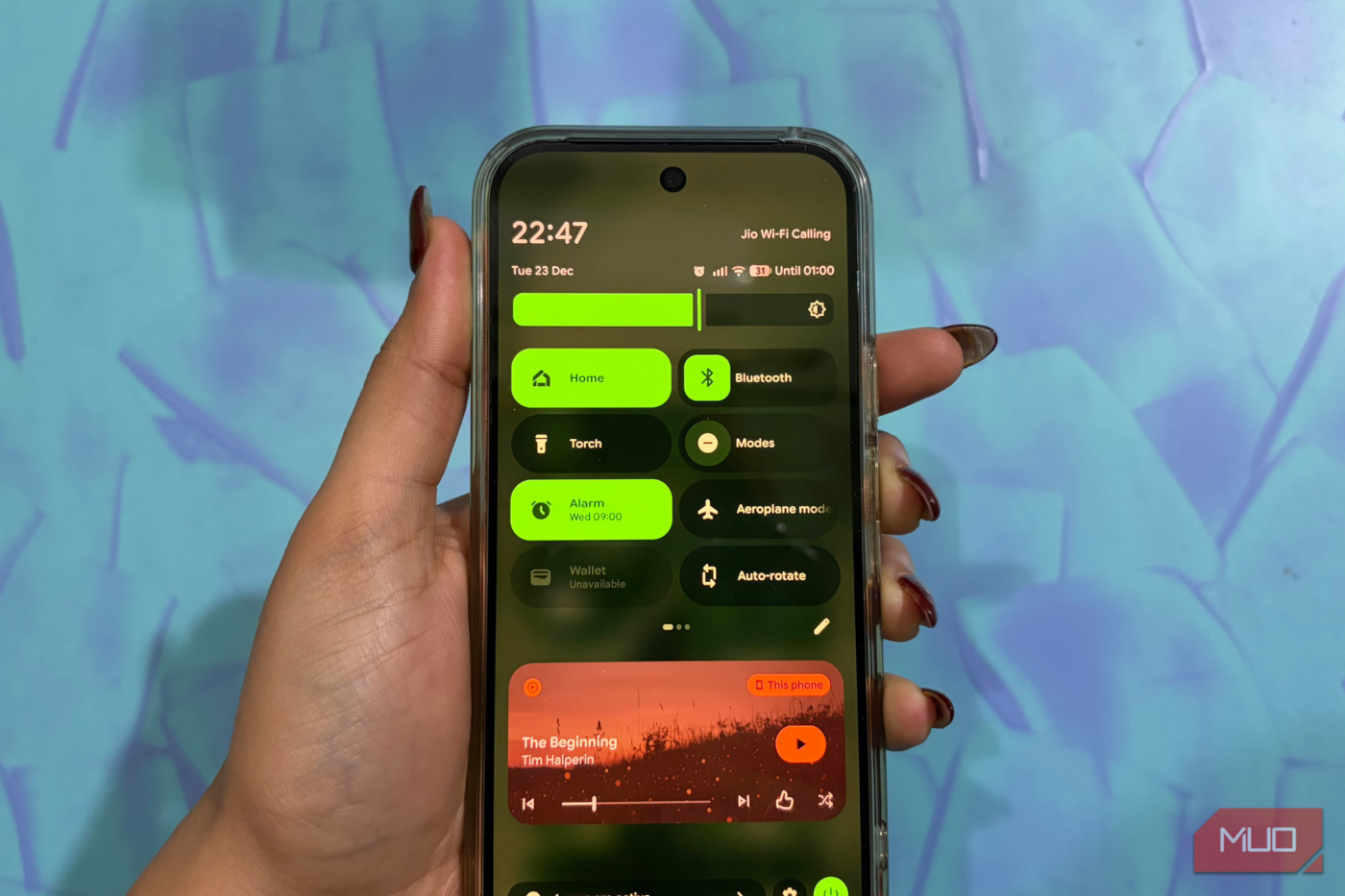
You’ve probably used this setting without realizing what it’s called. Quick Settings on Android is the panel you pull down by swiping from the top-right corner twice. If you use things like Wi-Fi, Bluetooth, or Flashlight every day, adding them to Quick Settings makes usage much easier. Everything you need stays right there, just a swipe away.
You can access Quick Settings on any Android phone by swiping down from the upper right corner of the screen. I’m using the Google Pixel 10 Pro, where you can swipe down from either side because notifications and Quick Settings are grouped together.
How to customize this panel?
Put your most used tiles front and center

You can easily customize the Quick Settings panel to suit your needs. Simply swipe down twice to open the full Quick Settings tab, then tap the pencil-shaped icon (the Edit icon) in the top-right corner of the screen.
From here:
- To add a setting in this tab, tap the + icon on the right side of the tile.
- On the contrary, to remove a setting, tap the – icon.
- You can also rearrange files by long-pressing a tile and dragging it to your preferred position.
This lets you keep the shortcuts you use most within easy reach. Thankfully, Android offers robust customization tools that let you set up the Quick Settings panel the way you want.
What does Sensors Off mean?
Your phone doesn’t need to know everything

Sensors Off is an Android feature that completely shuts down your phone’s hardware sensors, including the camera, microphone, and motion sensors. The goal is to protect your privacy. When this feature is turned on, apps can no longer access your data as you use it in real-time. Meaning your phone cannot listen to your conversations, watch through the camera, or track how you move and use your device. So even if you talk about buying something or visiting a place, your phone won’t pick it up and push related ads your way anymore. In short, Sensors Off stops your phone from listening, watching, and sensing how you use it, giving you much better control over your personal data.
How does this actually protect your privacy?
A safety net for your phone

Now that you know what this feature does, it’s equally important to understand how it helps in real-world situations. The biggest advantage of Sensors Off is the constant protection it provides for your sensitive data. With the sensors turned off on your smartphone, apps simply don’t get access to information they could misuse.
This greatly reduces the risk of anything shady happening in the background without your knowledge. Which means it in turn reduces the risk of falling for scams or spam that exploit sensor access, especially those that misuse your camera or microphone. All in all, it acts as a safety net.
There’s one downside you shouldn’t ignore. Sensors Off acts as a safety net, but the moment you need to use the camera or do any sensor-based activity on your phone, you have to manually turn it off again. Do this often, and what starts as a strong privacy safeguard quickly becomes an everyday inconvenience. The friction is definitely hard to miss if you’re lazy.
How to enable Sensors Off
Time to flip the right switches
To enable Sensors Off on your Android, you will first need to turn on the Developer Options.
- Open the Settings app on your Android phone
- Go to About Phone.
- Scroll down and tap Build number seven times.
- You’ll see a prompt sharing how many steps remain.
- Enter your device PIN when asked.
- A message will appear at the bottom saying “You’re now a developer.”
Once that’s done, open the Settings app again and go to System, then tap Developer Options. Scroll to Quick Settings, developer options, and toggle on Sensors Off. The Sensors Off tile will now appear in your Quick Settings panel, letting you turn it off or on whenever you need.
If you ever want to turn off the Sensors Off setting completely, just follow the same steps you used to enable it. Once you reach that setting, simply toggle it off.
On the other hand, if you ever want to turn off Developer Options on your phone, open the Settings app, go to System, and tap Developer Options. From there, switch off the Use Developer Options toggle.
Control comes at a cost
Honestly, this is a genuinely useful feature to have on your smartphone. One of the reasons I enjoy using Android phones is the freedom they offer to customize things exactly the way you want. I do wish iPhones were allowed this level of control, too, but that’s a conversation we should have on another day.
That said, Sensors Off is not perfect. While it gives you solid control over your privacy, it does come at a cost. You have to manually toggle it on and off depending on what you’re doing, and yes, that can get a little too annoying. But if privacy matters to you as much as it does to me, that extra step feels like a fair trade-off. You can turn it on when you want peace of mind, turn it off when you need your sensors, and stay in control the entire time. That’s not it! Here’s a setting I never forget when setting up a new phone.
source
Note: All product names, brands, and references in this post belong to their respective owners.
For more smart home guides, lifestyle tech updates, and UAE-focused recommendations, visit blog.thikra.co.
To shop smart gadgets, accessories, and lifestyle electronics, explore Thikra Store at thikra.co.







Leave a Comment