
Thikra Blog shares smart living tips, home gadget updates, and lifestyle technology insights tailored for UAE readers.
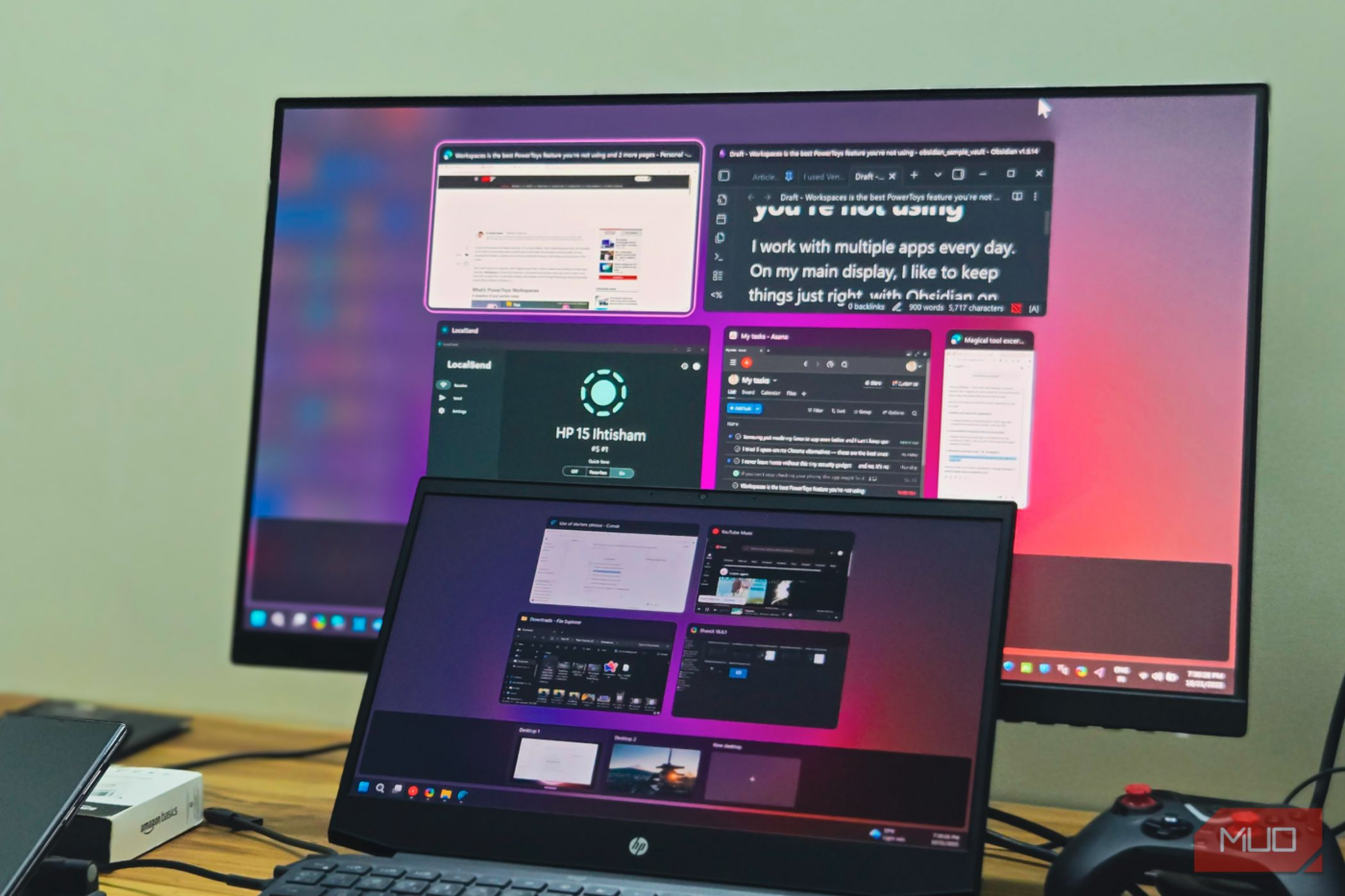
Old laptops tend to collect dust once they’ve been replaced, but they don’t have to. I had a Windows laptop sitting unused for months, and rather than letting it take up space, I turned it into a secondary display for the main PC. A second screen is genuinely useful for multitasking — keeping reference material open while working or just having more room to spread out windows.
Buying a new monitor wasn’t something I wanted to spend money on when I already had a functional screen doing nothing. With Spacedesk, the setup only takes a few minutes, and the results are practical enough that I’ve kept using it since.
I chose it over the native Windows features

Before I landed on Spacedesk, I tried the native Windows solution called “Project to this PC.” On paper, it’s great because it’s built-in. However, it relies on Miracast technology, which is picky about hardware. My older laptop’s wireless card didn’t support the required Miracast version, making the feature unstable on my hardware. Even on newer machines where I’ve seen it work, the connection does sometimes drop. I found myself reconnecting multiple times during work sessions, which defeats the purpose of having a reliable secondary screen.
Spacedesk is a third-party application that creates a virtual display driver on your main PC. It streams the output to any device running its viewer app. The requirements are far more forgiving — it works on Windows 7 and later, so the aging laptop I’ve had since college is compatible. What sold me on Spacedesk was the flexibility in how devices connect. You can use Wi-Fi, the most convenient option, or a wired LAN connection for better stability. There’s even USB tethering if you want the lowest possible latency.
Having options matters when you’re dealing with older hardware that might struggle with one method but handle another just fine. The app is free for personal use, which made it an easy choice. There’s no trial period or feature lockout — you get the full functionality without paying anything. Given that the alternative was buying a dedicated monitor, spending zero dollars felt like the obvious move.
Setting up your new monitor is easy
Install Spacedesk on both machines

There are a few things to get right before everything works smoothly. You’ll need to install software on both machines — the primary PC you’re extending and the old laptop that will serve as the display. Here’s how to set it up:
- Download the Spacedesk Driver from the official website on your primary PC and run the installer.
- On your old laptop, download the Spacedesk Viewer app.
- Launch the viewer, and it should automatically detect your primary PC on the network with its IP address listed.
- Click the connection, and your laptop screen now mirrors or extends your primary display.
- To set it as an extended display, go to Settings > System > Display on your primary PC, and select Extend these displays from the dropdown menu.
Windows Firewall can block the connection if it doesn’t recognize Spacedesk. During installation, you’ll likely see a prompt asking to allow the app through the firewall. Make sure you accept it. If you skipped that step or the connection isn’t working, open Windows Security, go to Firewall & network protection, and manually allow Spacedesk through for private networks.
On your primary PC, the Spacedesk Driver Console runs in the system tray. Open it to confirm the service status shows “On.” If it’s off, the viewer app on your laptop won’t detect anything.
Optimize the performance for a smooth experience

Getting the connection working is only half the job. Without some tweaking, you might notice lag, stuttering, or visual artifacts, especially if your old laptop has modest specs. A few adjustments in Spacedesk’s settings can make it better.
The Spacedesk Viewer has options for color depth and compression that directly affect performance. Lower color depth reduces the amount of data being streamed, which helps on slower networks. You can find these settings by clicking the menu icon in the viewer app before connecting — experiment with different combinations to see what your setup handles best. Resolution and frame rate are the biggest factors in how smooth things feel. If your secondary laptop struggles with a 1080p stream, drop it to 720p. Similarly, reducing the frame rate cuts the workload. For tasks like reading documents or monitoring chat apps, you won’t notice the difference anyway.
Battery saver modes on either machine can throttle performance without warning. Windows scales back background processes and network activity to conserve power, which interferes with the stream. Disable battery saver on both your primary PC and the laptop acting as the display, and plug them in if possible.
Wired connections are worth the extra cable clutter if you’re doing anything that requires responsiveness, such as dragging windows, scrolling through content, or light video playback. Similarly, a 5GHz Wi-Fi connection handles bandwidth demands better than a 2.4GHz Wi-Fi connection. If both machines can connect via Ethernet, that’s even better — wired connections eliminate most latency issues.
You might encounter some minor issues
It’s important to set your expectations
This isn’t a replacement for a dedicated monitor, but it handles the right tasks well. Static content, such as Slack, Spotify, browser tabs, and reference documents, works without issues. At the same time, gaming and video playback struggle with latency, even on wired connections.
Common hiccups include “Server Not Found” errors from network mismatches and scaling issues between displays with different pixel densities. Both are fixable in a few minutes. However, the battery drain on the laptop is real, so keep it plugged in. If you have other old devices lying around, Spacedesk also supports Android and iOS tablets as secondary displays.
source
Note: All product names, brands, and references in this post belong to their respective owners.
For more smart home guides, lifestyle tech updates, and UAE-focused recommendations, visit blog.thikra.co.
To shop smart gadgets, accessories, and lifestyle electronics, explore Thikra Store at thikra.co.




Leave a Comment