
Thikra Blog shares smart living tips, home gadget updates, and lifestyle technology insights tailored for UAE readers.
My laptop only has 512GB of internal storage, so staying on top of storage isn’t optional for me. It’s a constant battle. Windows does offer tools like Disk Cleanup, Storage Sense, and cleanup recommendations, but it still takes a lot of effort to use them individually. And while tools like CCleaner exist, their most useful features are locked behind a paywall, and they can be a bit too aggressive at times.
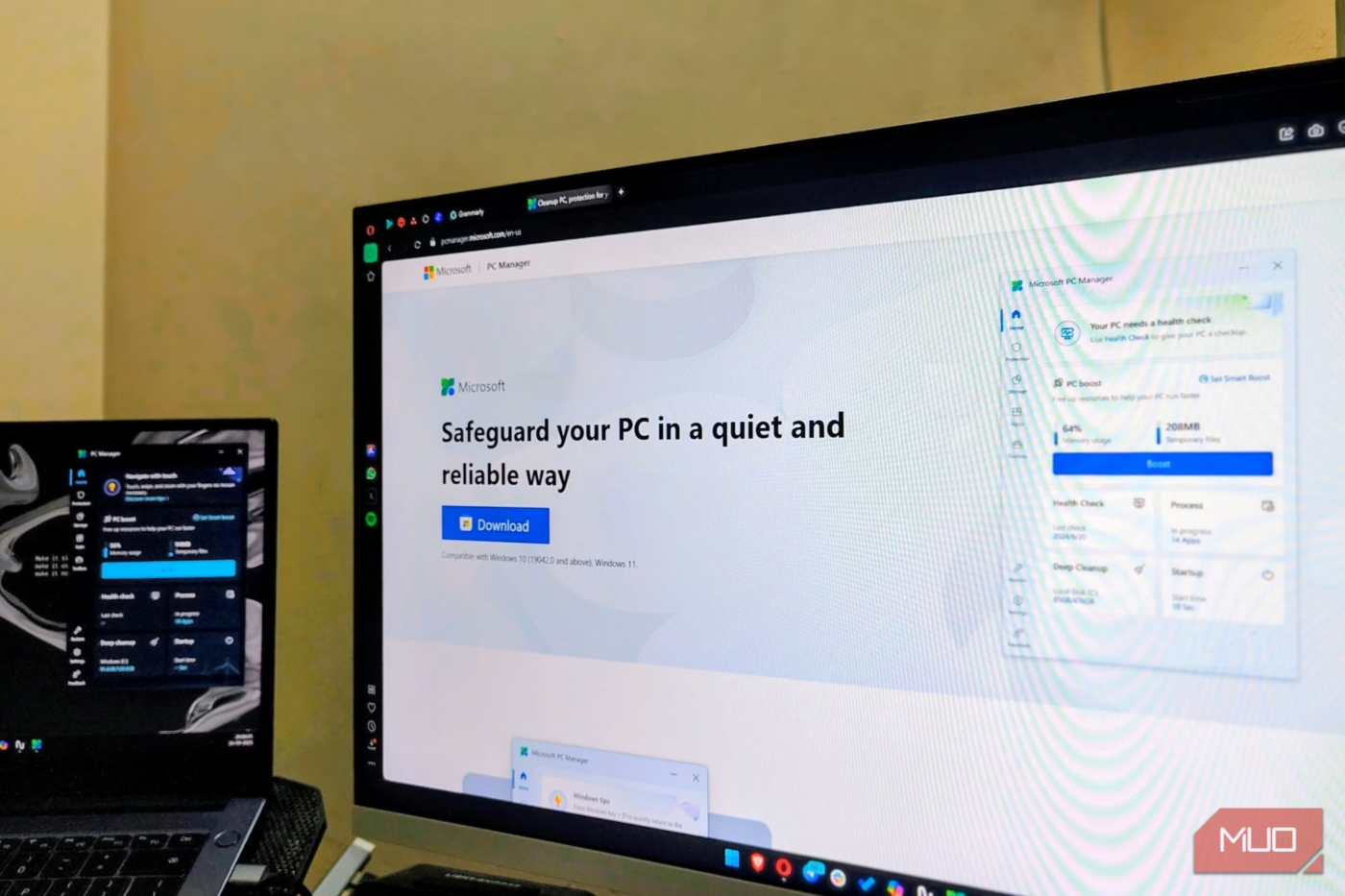
The good news is that you don’t have to pay for such apps. Microsoft already offers PC Manager. It’s a free app that offers essential cleanup and performance tools in one simple interface.

- OS
-
Windows
- Developer
-
Microsoft
- Price model
-
Free
- Operating System
-
Windows 10 & 11
Cleaning up storage only takes a few clicks
Storage cleanup made effortless
PC Manager’s Deep cleanup scan shows me exactly what I can do to free up storage without deleting apps or personal files. This usually includes browser cache data, temporary files, thumbnail cache, and more.
From here, I can hit Proceed and reclaim that storage quickly. The last time I ran this, I managed to reclaim almost 11GB of storage space in a matter of seconds.
The most handy feature for me, though, is PC Manager’s ability to find duplicate and large files. With a click, I can ask the app to look for duplicate or large files and list them. I can then review the entire list, select the items I want gone, and hit Permanently delete to free up space. When I first installed PC Manager, these two tools helped me free up over 30GB of storage.
There’s also the Downloaded files option. It lets me sort my downloads by file type, size, date, and even the browser they came from. This makes it ridiculously easy to get rid of old installer files, ZIP files, and even forgotten PDFs.
Boost performance with a click
A quick fix for slowdowns

No matter how powerful your PC is and how much more RAM it has, apps and programs always find a way to fill it up. And when that happens, everything slows down. Apps take longer to open, browser tabs start shuttering, and even simple actions become difficult. In such instances, you’ll be glad you have PC Manager installed.
Right on its Home tab, there’s a Boost button that does exactly what you hope it would. It frees up resources, mainly RAM, by closing some of the background processes. While doing that, it also clears out all the temporary files.
Enabling PC Manager’s toolbar makes it even easier to access this feature. The widget also shows your upload and download speeds, which is always handy. And it gets better. You can set up PC Manager’s Smart boost feature so it automatically runs the boost feature any time it detects a high RAM usage or temporary files growing beyond 1GB.
Deep uninstall apps, pop-up blocker, and more
Little conveniences that make life easier

Beyond cleanup and performance boosts, PC Manager also covers a bunch of smaller but incredibly useful tools that make everyday Windows use less annoying.
One of my favorites is Deep uninstall. Unlike deleting apps through the Windows Settings app, PC Manager doesn’t leave behind app files or registry entries. This may not sound like much, but these junk files can add up over time and removing them usually requires a dedicated uninstaller tool.
Another useful option is Pop-up blocker. Enabling it allows PC Manager to block those random ads, recommendations, and promotional pop-ups that certain apps love to throw at you. If something slips through, you can easily configure the app to block it next time.
Finally, there are little tools like Network check that add to the convenience. It helps you test and troubleshoot your internet connection. The Process management option lets you see which apps are running in the background and close them without opening Task Manager. Since it only lists your apps and not critical system processes, there’s no risk of accidentally shutting down something important.

3 Surprisingly Useful Microsoft Apps You Won’t Find Pre-Installed on Windows
These underrated Microsoft apps can transform how you use your PC.
It’s free, and it comes straight from Microsoft
No ads, no subscriptions, no catch

One of the biggest advantages PC Manager has over CCleaner is that it’s completely free and built by Microsoft. There are no ads, no premium tiers, and no constant nudges to upgrade to a paid version.
Being a Microsoft app also means it feels properly integrated with Windows. It doesn’t rely on aggressive cleanup tactics or questionable “optimizations” to look effective.
Finally, knowing the app is designed specifically for Windows, and by the same company that built the OS, makes a difference. Honestly, the more I use it, the more surprising it feels that PC Manager doesn’t come pre-installed on Windows.
I hope Microsoft doesn’t ruin it
As useful as PC Manager is, there are some aspects of it that I don’t like. For example, the Taskbar repair option recommends enabling widgets if you’ve disabled them. Similarly, the Restore default apps option nudges you toward sticking with Microsoft’s own browser and apps.
Essentially, PC Manager is also yet another place where you’ll find Microsoft promoting its own ecosystem. These suggestions feel unnecessary in an app that’s otherwise so practical and user-friendly.
source
Note: All product names, brands, and references in this post belong to their respective owners.
For more smart home guides, lifestyle tech updates, and UAE-focused recommendations, visit blog.thikra.co.
To shop smart gadgets, accessories, and lifestyle electronics, explore Thikra Store at thikra.co.









Leave a Comment