
Thikra Blog shares smart living tips, home gadget updates, and lifestyle technology insights tailored for UAE readers.
Excel can speed up your workflow with features like AutoCorrect and Formula AutoComplete. But sometimes, it feels like Microsoft Excel is actively working against you. If you have used it long enough, as I have, you tend to notice that it adds extra steps to your process. While there are certain things you can’t permanently fix as of now, such as auto-wrapping pasted text, you can get rid of some of this annoying behavior.
Don’t get me wrong, Excel’s default “helpfulness” is a huge benefit to casual users. But when auto-converting data causes errors or when small changes freeze your workbook on large datasets, tasks that should take you seconds now take minutes. By tweaking a few settings, you can ensure that Excel is helpful in the right way.
Automatically converting data
Excel makes entering certain data difficult

Ever tried entering a number that starts with zero, only for Excel to remove any leading zeros? For instance, you type 00123, but when you press Enter, Excel converts that to 123. What about when you type 1 January, only for Excel to convert that to 1-Jan? Automatic conversions like these can be annoying, even for casual users.
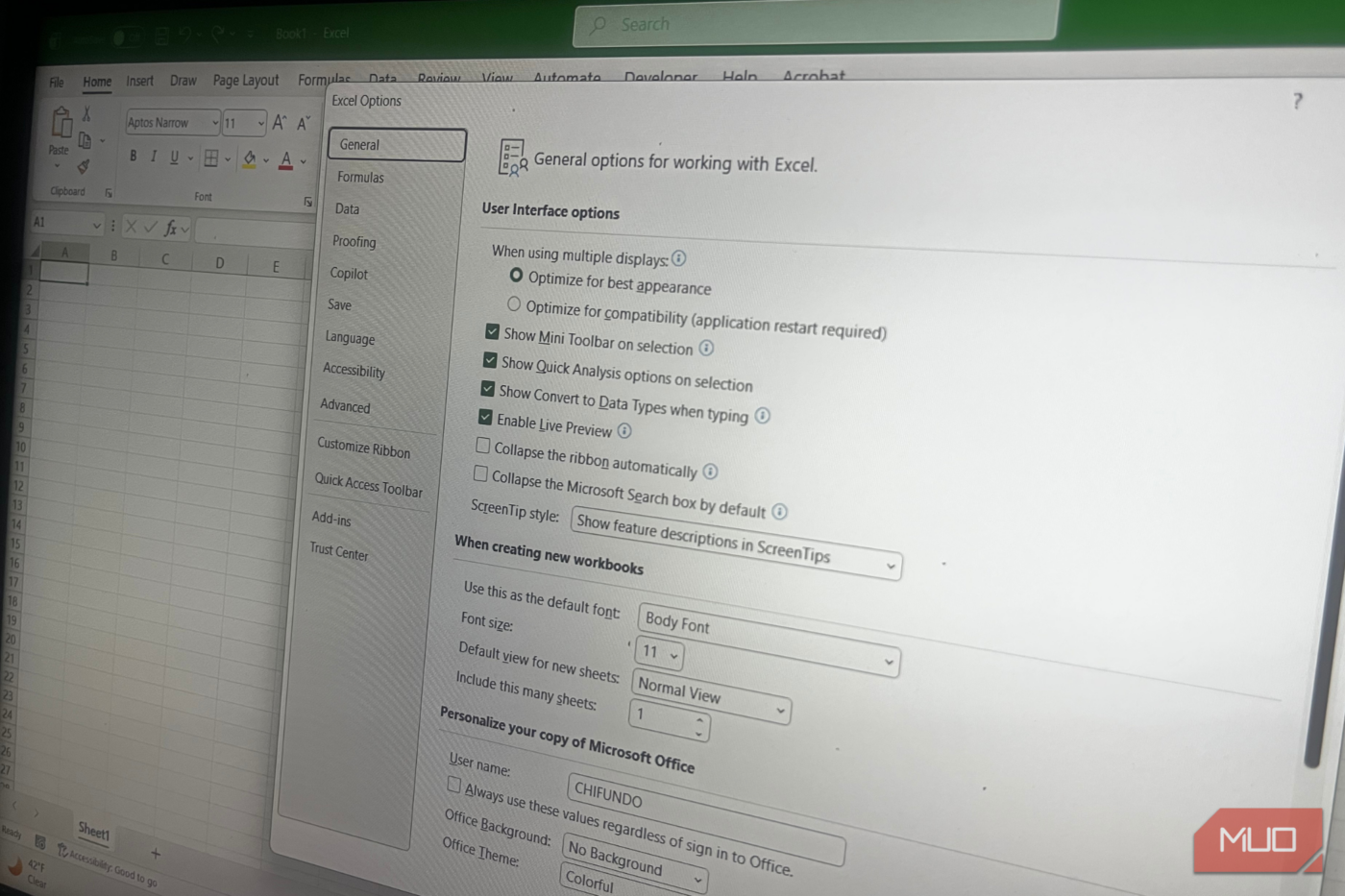
To disable this behavior, start by going to File -> Options -> Data. Scroll down to the Automatic Data Conversion section, uncheck Enable all data conversions below when entering, pasting, or loading text into Excel, and click OK. Keep in mind that these options in particular are available in Excel 2021 and newer.
Alternatively, you can untick particular auto-conversion options, such as Remove leading zeros and convert to a number and Convert continuous letters and numbers to a date, if you find the rest useful.

How to Disable Excel’s Annoying Auto-Formatting
Excel’s auto-formatting has a mind of its own, but you can take back control with a few simple tweaks.
Unfortunately, Excel will still automatically convert certain things, even after making these tweaks. If you type 1/1 or 1-1 and press Enter, Excel will still convert it to 1 JAN. You need a workaround for these cases. In this scenario, you will need to put an apostrophe in front of it (e.g., ‘1/1) so it doesn’t get automatically converted to a date.
Automatically hyperlinking URLs
Not every URL needs to be turned into a link

Whenever you type a URL in a cell and press Enter, Excel turns it into a hyperlink. Clicking the cell opens your default browser to that URL, which is annoying when you only want to copy the link. It can get annoying if you’re maintaining a list of websites and want to copy the URLs using the Ctrl + C shortcut in Excel.
To select the cell without triggering a redirect, you have to do unnecessary extra steps. Here are the common workarounds I use:
- Click and hold the left mouse button for a moment and then release it — the cursor will turn from a hand to a plus sign.
- Right-click the cell and then press Escape to close the context menu that pops up.
- Select an empty cell and navigate to the one with the link using the arrow keys.
To prevent Excel from turning every URL into a hyperlink, navigate to File -> Options -> Proofing and click the AutoCorrect Options button. Select the AutoFormat As You Type tab, uncheck Internet and network paths with hyperlink under Replace as you type, and click OK. Now, when you enter a URL in a cell, it will not automatically become a link.
Recalculating the workbook after every change
It can make working with volatile functions a pain

Excel will recalculate the entire workbook whenever you change the value of a dependent cell—one that a formula depends on. On the plus side, this ensures the workbook is always up-to-date. However, it can cause large sheets to become slow, especially if you’re using formulas known to make Excel lag.
This mostly applies to volatile functions like NOW and TODAY. These recalculate the entire workbook with every little change you make. You don’t even need to change any of their input. This is why experts recommend that you either avoid them (use non-volatile alternatives) or use them sparingly. But if they’re causing your Excel sheet to hang for a few minutes and you can’t avoid or tone them down, it’s best to take control of the recalculation process.

My formulas calculate faster than ever thanks to this unassuming Excel toggle
Don’t let lengthy calculations slow you down!
To do that, click File -> Options -> Formulas. Under Calculation options -> Workbook Calculation, tick the Manual radio button. Be sure to leave the Recalculate workbook before saving option checked and then click OK. Now your workbook will recalculate whenever you press F9 or save.
Auto-completing formulas in tables
It’s not always helpful

When you type a formula in a table cell, Excel will automatically apply it to the rest of the cells in the column. While this can speed up work in many scenarios, it can cause frustrations when there are exceptions or edge cases. To make matters worse, if you try to adjust one of these auto-calculated formulas, Excel will update the other cells in the column to match.
To disable this, go to File -> Options -> Proofing and click the AutoCorrect Options button. Switch to the AutoFormat As You Type tab, uncheck Fill formulas in tables to create calculated columns under Automatically as you work, and click OK.
Doing this will give you control over calculations in your table. While it might not be as quick to create calculated columns, you can always use the fill handle. Furthermore, you can tweak individual formulas without Excel “correcting” anything for you.
Copilot’s floating icon that appears when you click a cell
It can feel like unnecessary clutter
Finally, let’s talk about that floating Copilot icon when you click on a cell. Clicking the icon opens a Copilot context menu with options like Explain this formula or Suggest conditional formatting. While it definitely has its uses, this icon can be distracting and adds to the visual clutter. Fortunately, there’s a way to minimize its appearance without disabling Copilot.
Copilot is only available in Excel 365 with a Microsoft 365 subscription.
To do that, click File -> Options -> Copilot, check Show Copilot only for highly relevant suggestions, and click OK. This will ensure that the Copilot icon only appears when Excel determines it could be helpful. For instance, you might see it show up to help you analyze data or suggest a formula. It’s a great middle ground if you find the option somewhat useful.
If you want the Copilot icon gone completely, uncheck Enable Copilot, click OK, and restart Excel. Keep in mind that it will also grey out the Copilot button in the ribbon of the Home tab, since it will disable Copilot completely.
Excel should work with you, not against you
Excel is designed to work for everyone. However, it feels like it’s tuned to accommodate casual users by default. By taking a few minutes to tweak these “helpful” options, Excel can stop hindering your work. I can only hope Microsoft adds more settings to Excel so I can tweak it to completely stop ruining my day.
source
Note: All product names, brands, and references in this post belong to their respective owners.
For more smart home guides, lifestyle tech updates, and UAE-focused recommendations, visit blog.thikra.co.
To shop smart gadgets, accessories, and lifestyle electronics, explore Thikra Store at thikra.co.










Leave a Comment