
Thikra Blog shares smart living tips, home gadget updates, and lifestyle technology insights tailored for UAE readers.
Windows 11 is full of features most of us never touch, and for me, the Widgets panel was at the top of that list. I tried it when it first launched and hid it almost immediately because it didn’t feel useful at all.
But since then, Microsoft has made a few meaningful changes to it. The layout is now cleaner, customization options are plentiful, and third-party widgets have started to show up. Now that I’ve set it up with my favorite widgets, it’s become part of my workflow and something I actually use daily.
A feature that felt forced from day one

The Widgets panel has been part of Windows 11 since its launch. The idea is simple. Instead of cluttering the desktop with floating tiles, you get a dedicated panel that you can open by clicking the taskbar icon or Windows + W keyboard shortcut.
Inside, you get a news feed filled with topics you’re interested in. Then there is the Widgets tab, of course, that shows quick info from a few popular apps like Spotify, Weather, Copilot, and more.
Now, there are two major reasons the Widgets panel doesn’t make a great first impression. The first one is Microsoft’s Start feed. It isn’t as popular or refined as Google Discover. The stories often feel less relevant, the recommendations less sharp, and frustratingly, Microsoft doesn’t allow changing the news source. I personally rely on Google Discover on my Android phone and would love to see the same feed make its way into the Widgets panel.
The second issue is control, or rather the lack of it. There’s no easy way to completely disable the Widgets panel. Sure, you can hide its icon from the taskbar, but the panel still remains active.
If you accidentally press Windows + W, it jumps out of nowhere. Worse, it continues to use system resources even when you’re not using it. For many users, myself included, this makes the panel forced and intrusive rather than helpful.
What finally won me over
Small changes that made a big difference

It’s not like Microsoft hasn’t done anything to make the Widgets panel more likeable. One of the biggest changes is how the panel is organized. Initially, everything lived in one long, messy view. The news feed and the widgets were mixed together, which made the panel feel cluttered and unfocused.
Now, they live in separate tabs, so you only see what matters to you. What I like the most though, is that you can even turn off the Microsoft Start Feed entirely if you don’t use it. This makes the panel even more approachable for someone like me who only wants to use it to glance at widgets and nothing else.
When Windows 11 launched, there were only a handful of third-party widgets available. Outside of a few system widgets and Microsoft apps, you didn’t have much to work with. That’s not the case anymore. You can now find several third-party widgets in the Microsoft Store.
For a long time, I just didn’t notice or care enough about these things. That changed recently, and in hindsight, the improvements were exactly what the Widgets panel needed from the start.

This tiny tool finally made me make peace with Windows 11’s taskbar
It’s time to upgrade your taskbar’s looks and brains.
From ignored feature to daily habit
As I said earlier, I don’t use the Widgets panel for news. What I do use it for is a handful of widgets, and they make my life so much easier.
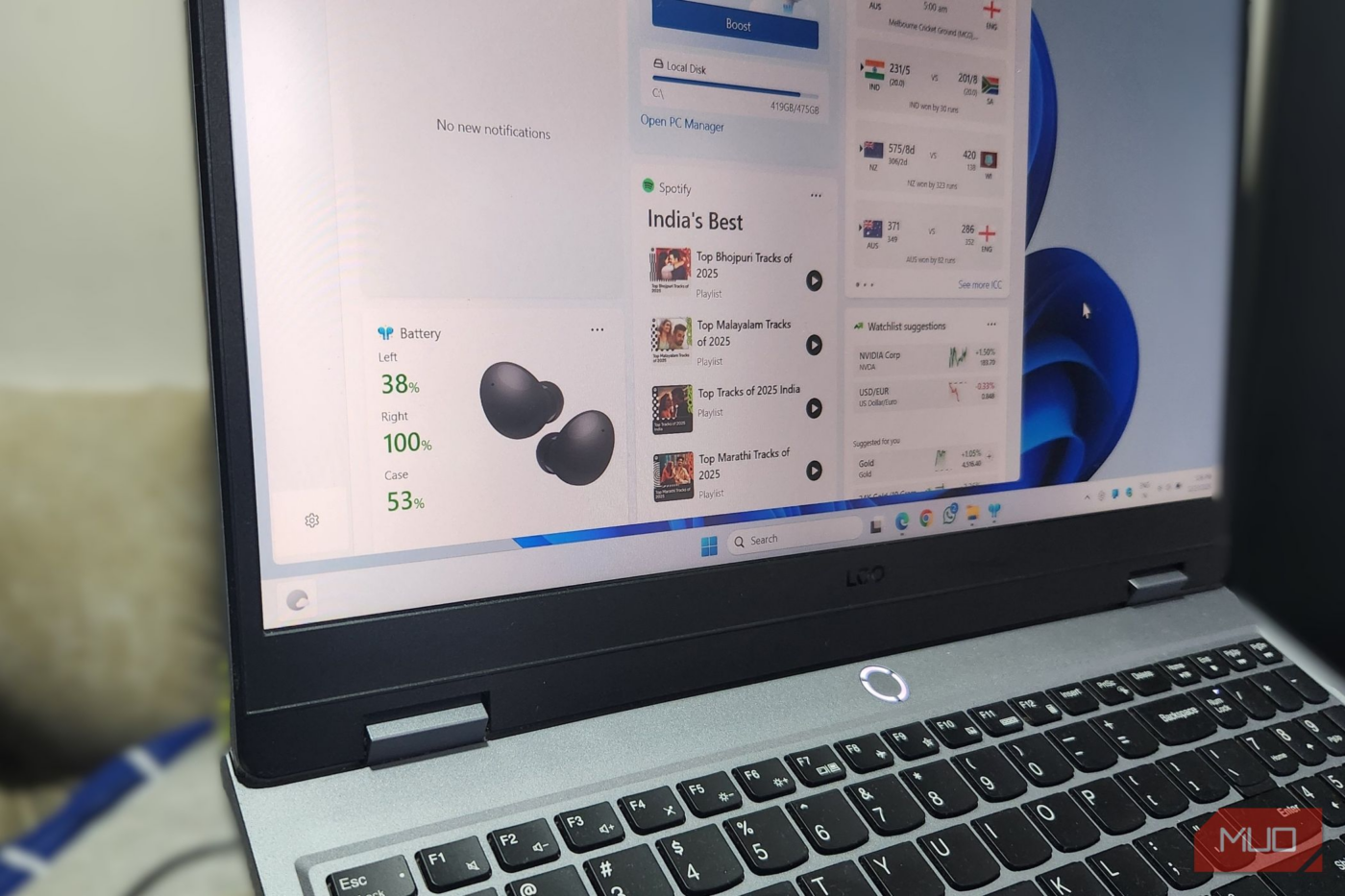
The first one for me is live sports scores, which shows me the latest scores of the teams I follow. It’s great for keeping an eye on a game while working. Right next to it, I keep a stocks watchlist widget pinned. It lets me see how my favorite stocks are doing. Of course, I can do this all from a browser too, but it’s far more convenient to stay on top of these things with the Widgets panel.
Music control is another reason the panel stays enabled. The Spotify widget shows me all the popular playlists I’d normally have to open the app to browse. I can then click the playlist I want to listen to.
Then there’s the PC Manager widget. It lets me access its Boost feature, which frees up system resources when things start feeling sluggish. Finally, the MagicPods widget lets me check the battery level of my wireless earbuds.
This is just how I use the widgets panel, but there are plenty of other things you can do with it. You can add Countdown, Phone Link, and even some casual games. Clicking the Find more widgets option takes you to Microsoft Store, where you can find more third-party widgets.
There’s still room for improvement
Somewhere along the way, the Widgets panel stopped being something I tolerated and became something I actually rely on. I just hope Microsoft allows changing the default news source and focuses on bringing more useful widgets. Those changes could turn the panel from a quiet convenience into one of Windows 11’s strongest features.
source
Note: All product names, brands, and references in this post belong to their respective owners.
For more smart home guides, lifestyle tech updates, and UAE-focused recommendations, visit blog.thikra.co.
To shop smart gadgets, accessories, and lifestyle electronics, explore Thikra Store at thikra.co.









Leave a Comment